
How to Use MagicAI
If you are new to AI content-generation platforms, getting started can seem complicated. MagicAI brings multiple AI tools into one platform, including AI writing, image generation, chat, code, documents, web search, voice and other content-generation features.
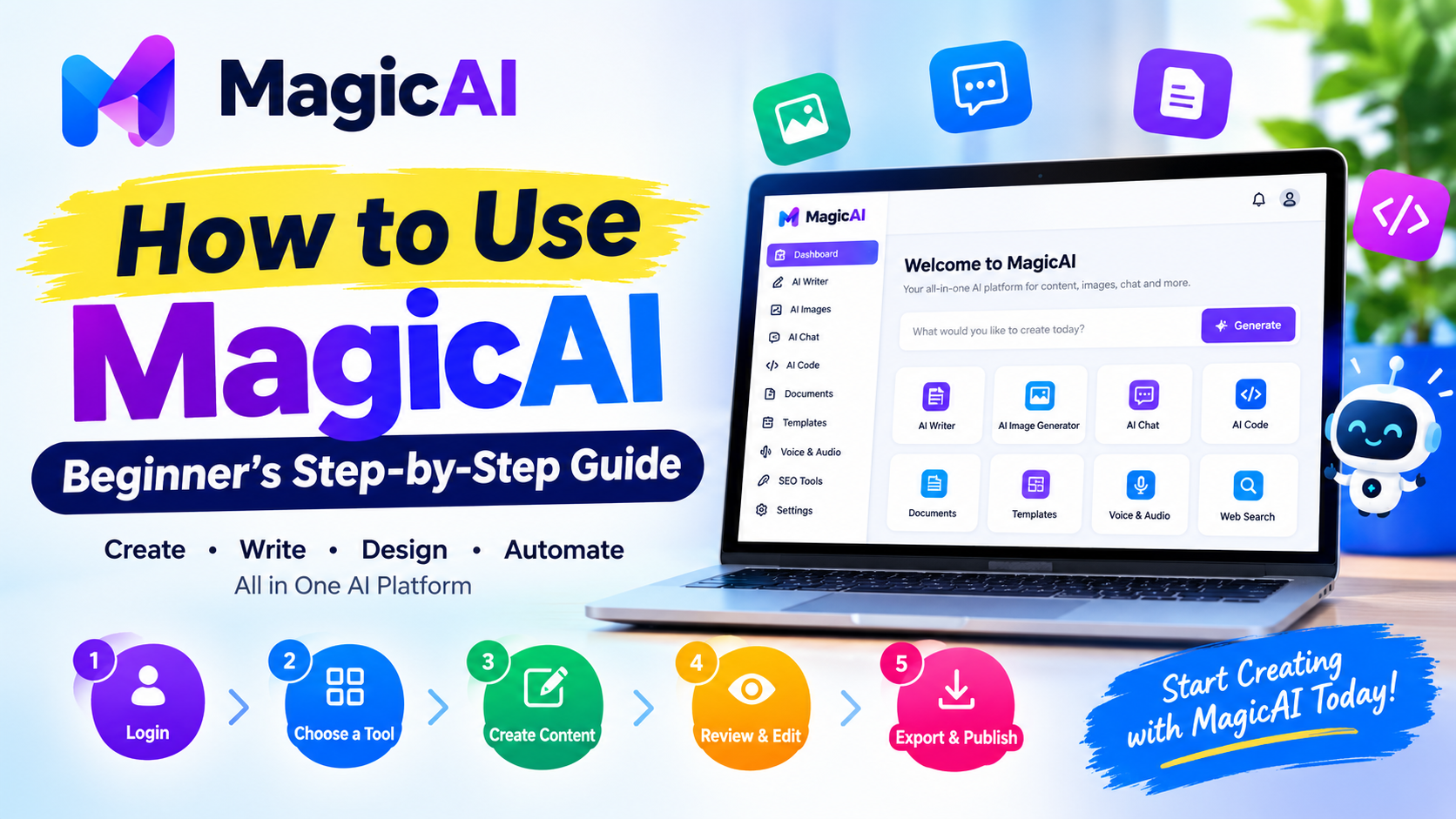
The basic MagicAI workflow is straightforward:
Choose a tool → Enter your instructions → Generate → Review → Edit → Export or publish
MagicAI’s official site describes a similar process: explain what your content is about, adjust the available settings, provide relevant information or keywords, generate the result and then review or export it.
This guide explains how to use MagicAI step by step, from understanding the dashboard to creating content with AI.
What Is MagicAI?
MagicAI is an all-in-one AI SaaS platform designed to provide multiple AI-powered content and productivity tools through one application.
Depending on the version and enabled extensions, MagicAI can include:
- AI Writer
- AI Image Generator
- AI Chat
- AI Code
- AI Article Wizard
- AI Vision
- AI PDF tools
- AI File Chat
- AI Web Search
- Speech-to-Text
- AI Voiceover
- YouTube-to-Blog
- RSS content generation
- Social media tools
- AI agents
- Custom templates
The current MagicAI listing identifies it as a Laravel-based SaaS application and notes that features can vary by version and extension.
Step 1: Access Your MagicAI Platform
The first step is to access the MagicAI website or SaaS installation you intend to use.
Depending on how the platform has been configured, you may see:
- Login
- Registration
- Social login
- Pricing plans
- Dashboard
- AI tools
- Templates
- Account settings
MagicAI supports multiple login and SaaS-management capabilities, depending on configuration.
After logging in, you can normally access the main dashboard.
Step 2: Understand the MagicAI Dashboard
The dashboard acts as the central workspace for the platform.
Depending on the installed version and configuration, you may find sections for:
- AI Writer
- AI Images
- AI Chat
- AI Code
- Documents
- Templates
- Voice & Audio
- Social Media
- AI Tools
- History
- File Manager
- Account settings
MagicAI’s current product information describes an advanced dashboard for accessing tools, analytics and platform management.
Beginner Tip
Don’t try every feature immediately.
Start with one simple task, such as generating a short article or social media post. Once you understand the basic workflow, explore the advanced tools.
Step 3: Choose the Right MagicAI Tool
MagicAI provides different tools for different types of tasks.
| Your Goal | Useful MagicAI Tool |
| Write an article | AI Article Wizard |
| Create general text | AI Writer |
| Generate an image | AI Image Generator |
| Ask questions | AI Chat |
| Work with code | AI Code |
| Analyze a PDF | ChatPDF |
| Analyze files | AI File Chat |
| Search current information | Web Search |
| Convert speech to text | Speech-to-Text |
| Create voice content | AI Voiceover |
| Convert video content | YouTube-to-Blog |
| Create social content | Social Media tools |
The exact list can change as MagicAI releases new versions and extensions.
Step 4: Start With a Clear Prompt
One of the most important skills when learning how to use MagicAI is writing a clear instruction.
A weak prompt might be:
Write an article about AI.
A better prompt is:
Write a 1,500-word beginner-friendly article explaining how AI content generators can help small businesses create website content. Use clear H2 headings, practical examples and an FAQ section.
The second instruction gives the AI much more context.
Step 5: Provide Relevant Information
MagicAI’s official workflow recommends providing basic information or keywords about your brand, product or topic before generating content.
For example, if you are creating product content, provide:
- Product name
- Product category
- Main features
- Target audience
- Benefits
- Brand tone
- Important keywords
- Call to action
Example
Product: Online Digital Marketing Course
Audience: Beginners
Tone: Professional and simple
Goal: Generate course landing-page content
The more useful context you provide, the easier it becomes to produce content aligned with your requirements.
Step 6: Use MagicAI Templates
MagicAI provides pre-built and custom templates for different content types.
The current product listing includes templates for tasks such as:
- Product descriptions
- Article generation
- Blog introductions
- Blog conclusions
- Facebook ads
- YouTube descriptions
- Instagram captions
- Email content
- Newsletters
- Meta descriptions
- FAQs
- Grammar correction
- Summarization
It also supports custom templates.
Templates are useful when you repeatedly perform the same type of task.
Step 7: Generate Your Content
After entering the necessary information, start the generation process.
MagicAI’s platform is designed to generate the requested output and display it for review. Its product documentation describes a workflow of explaining the content requirement, entering information or keywords and then viewing, editing or exporting the result.
Depending on the selected tool, the result could be:
- Text
- Article
- Image
- Code
- Summary
- Chat response
- Document analysis
- Audio-related content
Step 8: Review the AI-Generated Result
Never assume that the first AI-generated result is automatically ready for publication.
Check:
Accuracy
Are the facts correct?
Relevance
Does the content actually answer the user’s question?
Tone
Does it match your brand or audience?
Structure
Are the headings and paragraphs easy to follow?
Originality
Does the content provide useful information rather than generic statements?
Grammar
Are there spelling, punctuation or sentence-structure problems?
This human-review stage is especially important for professional websites.
Step 9: Edit the Content
MagicAI includes editing functionality that allows generated content to be refined.
Its product listing describes an Advanced AI Editor that allows users to generate and edit content within the same workflow.
You can improve content by:
- Removing repetition
- Adding examples
- Correcting facts
- Improving headings
- Simplifying complicated sentences
- Adding brand information
- Strengthening the introduction
- Improving the conclusion
Step 10: Use the AI Rewriter
If you already have content that needs improvement, MagicAI’s Rewriter can help reshape it.
Common applications include:
- Simplifying content
- Improving readability
- Changing tone
- Creating a shorter version
- Creating an alternative version
MagicAI lists a ReWriter among its content-generation tools.
Remember that rewriting should improve legitimate content, not disguise copied material as original work.
Step 11: Create SEO Content
MagicAI can be incorporated into an SEO content workflow.
For example:
Step 1
Choose a target topic.
Step 2
Identify the user’s search intent.
Step 3
Create an article outline.
Step 4
Generate the first draft.
Step 5
Add original information.
Step 6
Fact-check important claims.
Step 7
Optimize headings and metadata.
Step 8
Add internal links.
Step 9
Create a relevant featured image.
Step 10
Review the complete page before publishing.
MagicAI provides SEO-oriented article generation and templates, but using AI does not automatically guarantee search rankings.
Step 12: Generate AI Images
If you need a visual for your article, advertisement or social media post, select the AI Image tool.
A useful image prompt can include:
Subject + Style + Composition + Lighting + Purpose
For example:
Professional AI technology workspace, laptop displaying a modern SaaS dashboard, futuristic interface, clean corporate environment, premium technology style, soft lighting, wide blog-thumbnail composition.
After generating an image, check:
- Composition
- Text accuracy
- Brand consistency
- Image dimensions
- Copyright considerations
- Whether the image communicates the intended message
Step 13: Use AI Chat
AI Chat can be useful when you need to brainstorm or work interactively.
For example, you can ask:
Give me 20 blog topics about AI automation for small businesses.
Then continue:
Group these topics into five SEO clusters.
Then:
Create an outline for the first topic.
This conversational workflow can help turn a broad idea into a structured content plan.
Step 14: Work With Documents
If your MagicAI installation includes document tools, you can use features such as ChatPDF or AI File Chat to interact with supported files.
Possible tasks include:
- Summarizing a document
- Finding specific information
- Asking questions
- Extracting key points
- Understanding long documents
The current MagicAI product listing describes support for PDF and other file-based AI workflows.
Always verify important information against the original document.
Step 15: Use Web Search for Current Information
MagicAI also provides web-search functionality in current versions.
This can be useful when working with information that changes over time.
For example:
Research the latest developments in AI marketing and summarize the key changes.
However, search results should be checked carefully.
Before publishing an important claim, verify:
- Source
- Date
- Original publication
- Statistics
- Context
- Whether the information is still current
Step 16: Use Speech-to-Text
If your MagicAI installation includes Speech-to-Text, you can convert supported audio into written content.
A possible workflow is:
Audio → Transcript → Edit → Article → Social Media Post
This can be useful for interviews, meetings, educational material and content creators.
Step 17: Use AI Voiceover
AI Voiceover can be used to create audio narration from text.
Possible applications include:
- Video narration
- Educational content
- Presentations
- Marketing videos
- Social media videos
Available voice providers and features depend on the MagicAI configuration.
Step 18: Convert YouTube Videos Into Blog Content
MagicAI includes a YouTube-to-Blog feature.
A content creator can use the workflow:
Video → Written Content → Editing → SEO Optimization → Blog
The current product listing identifies YouTube-to-Post functionality among MagicAI’s AI generators.
Before republishing or transforming content, make sure you have the necessary rights to use it.
Step 19: Save and Organize Your Work
MagicAI provides file-management and personal-library functionality.
The platform describes a Personal Library for saving custom prompts and an Advanced File Manager for organizing files, folders, text, images and code.
A useful organization system could be:
Blog Content
- Drafts
- Published
- Updated
Marketing
- YouTube
Business
- Products
- Emails
- Advertisements
Good organization becomes increasingly important as your content library grows.
Step 20: Export Your Content
After reviewing your content, MagicAI provides export options.
The official MagicAI website lists export options including:
- Plain text
- Word
- HTML
depending on the feature and configuration.
Choose the format appropriate for your workflow.
For example:
Blog → HTML
Business document → Word
Report → PDF
How to Create a Blog Post With MagicAI
Here’s a practical beginner workflow.
Step 1: Choose a topic
Example:
AI tools for small businesses
Step 2: Define the audience
Small-business owners with limited technical knowledge.
Step 3: Create an outline
Ask MagicAI for:
- Introduction
- Benefits
- Use cases
- Examples
- Tips
- FAQ
- Conclusion
Step 4: Generate the draft
Use the AI Writer or Article Wizard.
Step 5: Review the information
Check facts and remove generic statements.
Step 6: Add original value
Include:
- Examples
- Screenshots
- Data
- Practical experience
- Expert insights
Step 7: Optimize SEO
Add:
- SEO title
- Meta description
- H2/H3 headings
- Internal links
- Relevant images
- Descriptive ALT text
Step 8: Publish
Export the content or connect it to your publishing workflow.
MagicAI also offers a paid WordPress integration that can automate pushing generated SEO-oriented articles to WordPress.
Best MagicAI Prompt Formula
A useful prompt structure is:
Role + Task + Context + Audience + Format + Requirements
Example
Act as an experienced SEO content writer. Create a 1,500-word beginner-friendly article about AI tools for small businesses. The target audience is business owners with limited technical knowledge. Use clear H2 and H3 headings, practical examples, an FAQ section and a concise conclusion. Avoid unsupported claims and unnecessary repetition.
This gives the AI clear instructions before generation begins.
Common MagicAI Mistakes to Avoid
1. Using Very Short Prompts
Instead of:
Write an article about SEO.
Provide the topic, audience, length, structure and objective.
2. Publishing Without Reviewing
Always review AI-generated content.
3. Ignoring Search Intent
An SEO article should answer what the searcher actually wants.
4. Overusing AI Content
More content does not automatically mean better content.
5. Forgetting Original Information
Add your own examples, expertise and evidence.
6. Treating AI as an Authority
AI can make factual mistakes. Verify important claims.
7. Using Too Many Templates Without Customization
Templates are starting points. Adapt them to your business and audience.
How to Use MagicAI More Efficiently
Once you understand the basic workflow, you can create reusable systems.
Create Brand Templates
Store your preferred:
- Tone
- Style
- Formatting
- Product information
- Audience information
MagicAI supports custom templates and BrandVoice functionality for maintaining brand-specific information across content generation.
Build Prompt Libraries
Save frequently used prompts instead of rewriting them every time.
Create Content Workflows
For example:
Keyword → Article → Image → Social Post → Email
Use AI for the First Draft
Let AI handle repetitive starting work while you focus on accuracy, strategy and final quality.
MagicAI for Different Users
| User | Example Use |
| Blogger | Article creation |
| SEO Professional | SEO content workflow |
| Marketer | Ads and social media |
| Business Owner | Website and marketing content |
| Student | Brainstorming and explanations |
| Developer | Coding assistance |
| Creator | Video, image and voice workflows |
| Agency | Client content production |
| SaaS Owner | AI-powered customer platform |
Is MagicAI Easy for Beginners?
MagicAI can be approachable for beginners because its workflow generally follows a simple pattern:
Choose → Describe → Generate → Edit → Export
The platform also provides templates and a dashboard containing multiple AI tools.
However, the number of available features can make the platform feel complex initially.
The best approach is to learn one feature at a time.
Start with:
- AI Writer
- Templates
- AI Chat
- AI Images
- Article Wizard
- Documents
- Advanced tools
MagicAI Beginner Workflow
For someone using MagicAI for the first time, this is a practical starting workflow:
1. Login
↓
2. Open Dashboard
↓
3. Choose AI Writer
↓
4. Select a Template
↓
5. Enter Topic and Keywords
↓
6. Generate Content
↓
7. Review and Edit
↓
8. Add Original Information
↓
9. Export
↓
10. Publish
Once comfortable with this workflow, you can start using image generation, AI chat, documents, web search and other features.
Frequently Asked Questions
How do I use MagicAI?
Log into your MagicAI platform, select an AI tool, provide your instructions or keywords, generate the result, review and edit it, then export or publish it. MagicAI’s official workflow follows this general process.
Is MagicAI easy to use?
The basic workflow is straightforward, although the platform offers many advanced features that may require additional learning.
How do I create an article in MagicAI?
Use the AI Writer or AI Article Wizard, provide the topic and relevant keywords, generate the article, review it, add original information and optimize it before publication.
Can I create images with MagicAI?
Yes. Current MagicAI versions include AI image-generation capabilities.
Can I use MagicAI for SEO?
Yes. MagicAI includes SEO-oriented article and content-generation functionality. However, AI generation alone does not guarantee search rankings.
Can MagicAI generate social media posts?
Yes. MagicAI includes social-media-related tools and templates.
Can I analyze PDFs with MagicAI?
Supported MagicAI versions include PDF and file-analysis capabilities.
Can I export MagicAI content?
Yes. MagicAI lists export options including plain text, PDF, Word and HTML, depending on the feature.
Can MagicAI connect with WordPress?
MagicAI offers a paid WordPress integration that can push generated SEO-oriented blog content to WordPress.
What is the best way to learn MagicAI?
Start with one tool, such as AI Writer, and learn the basic prompt → generate → edit → export workflow before moving to advanced features.
Final Thoughts
Learning how to use MagicAI does not require mastering every feature at once.
Start with a simple workflow:
Choose a tool → Give clear instructions → Generate → Review → Improve → Export
Once you understand this process, you can expand into AI images, chat, documents, web search, voice, social media, video and automation.
MagicAI’s current ecosystem is extensive and continues to evolve, so individual features can differ by release, configuration and paid extension.
The most effective approach is to use MagicAI as a productivity assistant while keeping human control over accuracy, originality, strategy, privacy and final publishing decisions.