
Introduction
AI image generation makes it possible to create visual content from simple text descriptions. Instead of searching through stock-image libraries or creating every visual manually, users can describe a subject, style, composition, and purpose and use an AI image generator to create a visual concept.
MagicAI includes an AI Image Generator designed to create images from user input. Its official website also describes a workflow based around imagining, generating, and publishing images, while its platform includes image-generation and chat-image capabilities.
However, generating a useful image is not simply about typing a few words. Better results usually come from giving the AI clear information about the subject, visual style, composition, lighting, colors, background, aspect ratio, and intended use.
This guide explains how to generate AI images with MagicAI and how to create better prompts for websites, blogs, social media, marketing campaigns, ecommerce, advertisements, and other digital projects.
What Is AI Image Generation?
AI image generation is the process of creating visual content from text-based instructions.
For example, instead of searching for an image of a futuristic office, you can provide a description such as:
A modern futuristic office with large glass windows, blue ambient lighting, minimalist furniture, cinematic photography, realistic details, and a professional corporate atmosphere.
The AI interprets the description and generates an image based on the requested visual characteristics.
Can MagicAI Generate AI Images?
Yes. MagicAI’s official platform lists an AI Image Generator for creating images and describes its image-generation functionality as a way to create visual content from user input. The platform also lists Chat Image functionality for generating images through user input.
The exact interface and available controls can depend on the MagicAI installation or version being used, so users should work with the image-generation options available in their dashboard.
Why Generate AI Images with MagicAI?
AI image generation can be useful when you need original visual concepts quickly.
Potential applications include:
- Blog featured images
- Website graphics
- Social media visuals
- Marketing creatives
- Product concepts
- Advertising visuals
- Educational illustrations
- Presentation graphics
- Campaign concepts
- Background visuals
- Editorial thumbnails
- Creative experiments
MagicAI’s broader platform also provides content-generation tools, custom templates, and export functionality, allowing visual creation to be part of a wider content workflow.
What Makes a Good AI Image Prompt?
A strong image prompt should explain what you want the generated image to contain.
A useful structure is:
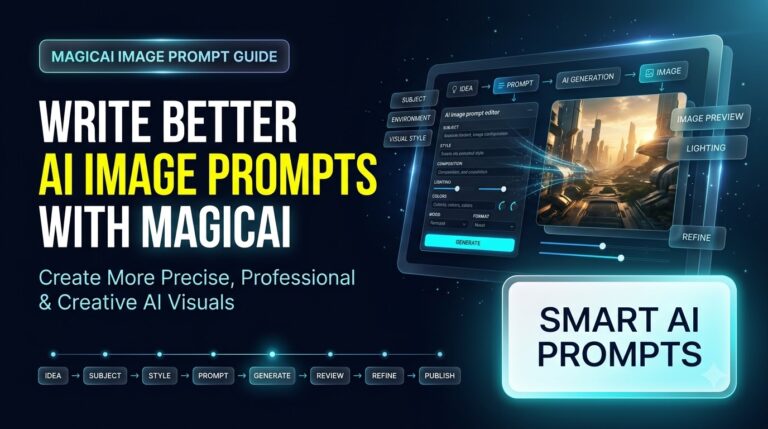
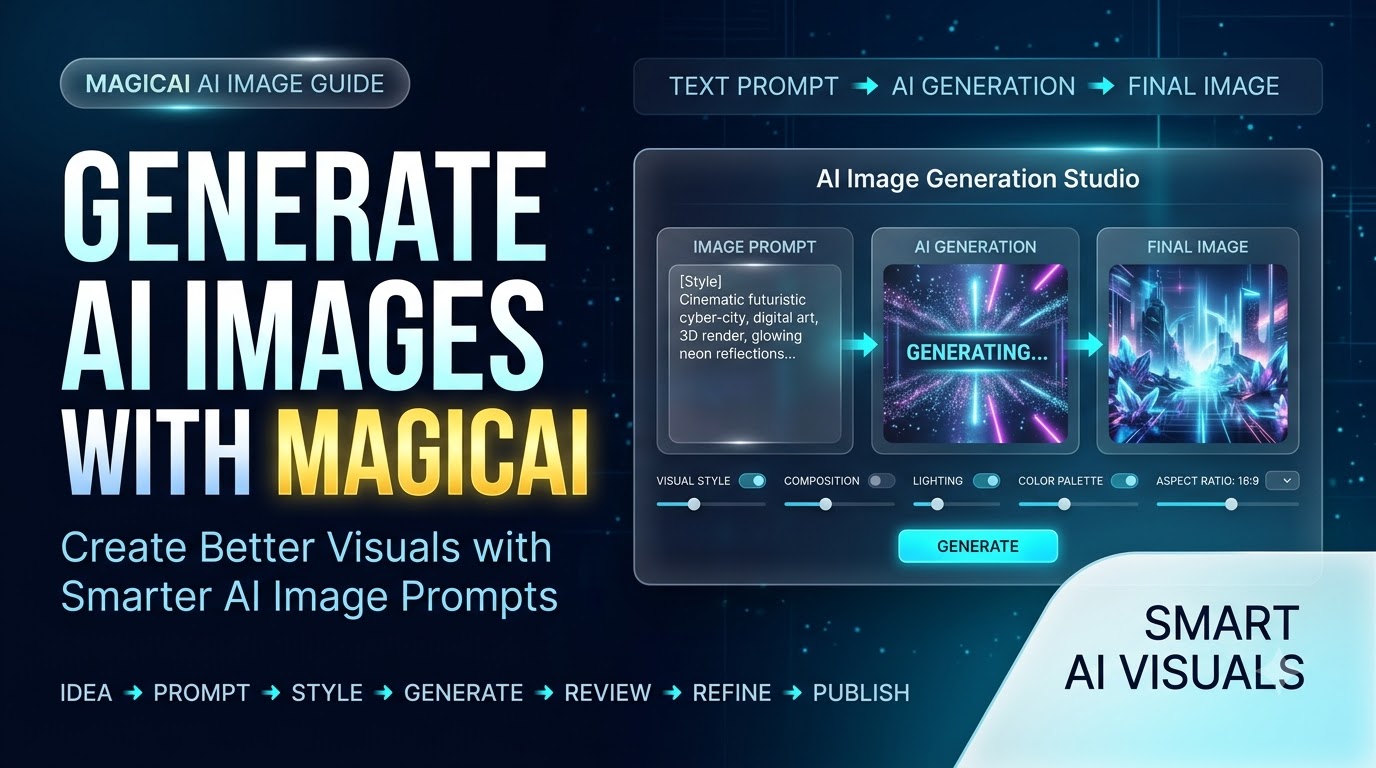
SUBJECT → ENVIRONMENT → STYLE → COMPOSITION → LIGHTING → COLORS → DETAILS → PURPOSE
For example:
Create a professional editorial image of a modern SEO workspace with a laptop displaying analytics dashboards, dark navy environment, electric-blue accents, cinematic lighting, realistic glass reflections, premium SaaS aesthetic, wide horizontal composition, clean negative space for a blog headline.
This gives the image generator more visual direction than:
Create an SEO image.
Step 1: Define the Main Subject
Start by explaining what should appear in the image.
Examples:
- Modern office
- Product package
- Coffee machine
- Smartphone
- Ecommerce dashboard
- SEO analytics interface
- AI content workspace
- Food packaging machine
- Business meeting
- Online store
Example prompt:
Create an image of a modern AI content workspace.
The subject should be specific enough for the generator to understand the main visual.
Step 2: Describe the Environment
Explain where the subject should appear.
Examples:
- Modern office
- Studio
- Industrial facility
- Ecommerce workspace
- Futuristic digital environment
- Outdoor setting
- Minimal white studio
- Dark technology environment
Example:
Place the AI content workspace inside a premium futuristic SaaS environment with dark navy surroundings and subtle blue lighting.
Step 3: Choose the Visual Style
The same subject can look completely different depending on the style.
You can request:
- Photorealistic
- Cinematic
- Editorial
- Minimalist
- Futuristic
- Premium SaaS
- 3D rendered
- Product photography
- Corporate
- Luxury
- Abstract
- Technical
- Glassmorphism
Example:
Use a premium futuristic SaaS editorial style with realistic 3D depth and sophisticated glassmorphism.
Step 4: Define the Composition
Composition determines how the visual elements are arranged.
Useful instructions include:
- Subject centered
- Subject on the right
- Text space on the left
- Symmetrical composition
- Wide horizontal layout
- Close-up
- Medium shot
- Top-down view
- Balanced negative space
- Strong visual hierarchy
For a blog thumbnail, you might write:
Place the main visual on the right side and leave clean negative space on the left for the headline.
This can be particularly useful when the image will contain editorial text.
Step 5: Specify Lighting
Lighting has a major effect on the appearance of an AI-generated image.
Try:
- Soft studio lighting
- Cinematic lighting
- Natural daylight
- Dramatic lighting
- Blue ambient lighting
- Neon lighting
- Warm lighting
- High-key lighting
- Low-key lighting
Example:
Use cinematic lighting with soft electric-blue highlights and realistic reflections.
Step 6: Define Colors
Color instructions can help maintain brand consistency.
For example:
Use a dark navy background, electric blue highlights, white UI elements, and subtle cyan reflections.
For another project:
Use a clean white background with soft gray shadows and natural green accents.
Avoid adding too many competing colors unless the visual requires them.
Step 7: Specify the Image Format
If the platform provides size or aspect-ratio controls, select the format that matches the final use.
Common formats include:
- Square
- Portrait
- Landscape
- Wide horizontal
For a website featured image, a wide landscape format is often useful.
Example:
Create a 16:9 horizontal composition suitable for a professional blog featured image.
Step 8: Add the Intended Use
Tell MagicAI where the image will be used.
Examples:
- Blog featured image
- Website hero section
- Instagram post
- Product page
- Advertisement
- YouTube thumbnail
- Ecommerce banner
- Editorial illustration
Example:
Design this as a premium SEO blog featured image rather than a presentation slide.
This gives the visual a clearer purpose.
Step 9: Add Important Details
Specific details can make the generated visual more relevant.
For example:
Include a modern laptop displaying an SEO dashboard, floating keyword cards, content analytics, search-intent indicators, and a clean AI writing interface.
Use details that support the main topic rather than filling the image with unrelated objects.
Step 10: Add Negative Instructions
Negative instructions can help reduce unwanted visual elements.
Examples:
Avoid people, faces, cartoon graphics, stock-photo appearance, clutter, excessive neon, distorted text, random letters, and unnecessary decorative elements.
Do not overload the prompt with dozens of contradictory restrictions. Focus on the problems that are most important for the image.
How to Create AI Images for Blog Posts
Blog images should communicate the topic quickly.
For example, for an article about SEO content:
Create a premium 16:9 blog thumbnail showing a futuristic SEO content workspace with keyword cards, content outlines, analytics panels, and an AI writing interface. Use a dark navy background, electric-blue lighting, glassmorphism UI, cinematic depth, and clean negative space for the headline.
For a blog featured image, prioritize:
- Clear topic representation
- Strong hierarchy
- Readable headline area
- Professional appearance
- Consistent visual style
- Appropriate aspect ratio
How to Generate AI Images for Social Media
Social media visuals usually need stronger visual impact.
Prompt example:
Create a modern social media graphic about AI content creation. Show a futuristic AI workspace with floating content cards, bright blue lighting, premium glassmorphism, strong depth, clean composition, and a visually striking central subject. Leave space for a short headline.
Specify the platform and intended format when necessary.
How to Generate AI Product Images
For product visuals, clearly describe the product and its environment.
Example:
Create a premium product photograph of a modern automatic packaging machine inside a clean industrial facility. Show the machine from a three-quarter angle, realistic stainless-steel surfaces, professional studio lighting, clean surroundings, high detail, commercial product photography, and a wide horizontal composition.
For technical products, preserve accurate physical characteristics and do not ask the AI to invent specifications.
How to Generate AI Images for Ecommerce
Ecommerce images should focus attention on the product.
Prompt:
Create a clean commercial product image of a modern kitchen appliance on a premium neutral background. Use realistic studio lighting, soft shadows, sharp product details, minimal decoration, professional ecommerce photography, and centered composition.
You can create different versions for:
- Main product image
- Lifestyle image
- Product-in-use image
- Feature image
- Promotional banner
How to Create AI Images with Text
Text inside AI-generated images can sometimes become distorted or inaccurate.
If readable text is essential, use a simple design and provide very specific instructions.
Example:
Add one large headline only: “AI CONTENT CREATION”. Use bold white typography, clean sans-serif lettering, high contrast, and no other text.
For critical marketing graphics, consider generating the visual background separately and adding final typography in a design tool.
How to Create Consistent Images with MagicAI
If you are producing multiple images for the same website, maintain a consistent visual system.
Keep consistent:
- Color palette
- Lighting style
- Composition
- UI style
- Background treatment
- Typography
- Image dimensions
- Visual tone
For example:
Use the same dark navy background, electric-blue lighting, premium glassmorphism, realistic 3D depth, and cinematic SaaS aesthetic across all images in this series.
This can make a website look more professionally designed.
How to Improve a Weak AI Image
If the first result is not useful, do not immediately start over with a completely different concept.
Identify the problem.
Problem: Too Much Clutter
Prompt:
Simplify the composition. Remove unnecessary objects and use more negative space.
Problem: Subject Is Too Small
Prompt:
Make the main subject significantly larger and visually dominant.
Problem: Colors Are Too Bright
Prompt:
Reduce the neon intensity and use a more sophisticated dark navy and electric-blue palette.
Problem: Image Looks Generic
Prompt:
Add more specific visual details related to the topic and create a premium editorial composition instead of a generic technology scene.
Problem: Text Is Unreadable
Prompt:
Use fewer words, larger typography, stronger contrast, and a clean uncluttered background.
How to Create Better Image Prompts
Compare these two prompts.
Weak Prompt
Create an AI image about SEO.
Better Prompt
Create a premium 16:9 SEO blog thumbnail showing a futuristic content optimization workspace with keyword research cards, search-intent indicators, SEO analytics, content outlines, and internal-link panels. Use a dark navy background, electric-blue lighting, sophisticated glassmorphism, cinematic depth, realistic reflections, clean negative space on the left for a headline, and a modern SaaS editorial aesthetic. Avoid robots, people, stock photography, clutter, and generic technology imagery.
The second prompt communicates the subject, purpose, composition, style, and restrictions.
10 Ready-to-Use MagicAI Image Prompts
Prompt 1: SEO Blog Thumbnail
Create a premium 16:9 SEO blog thumbnail about SEO content writing. Show a futuristic AI writing workspace with keyword cards, content outlines, SEO analytics, and a professional document interface. Use dark navy, electric blue, glassmorphism, cinematic lighting, realistic depth, and clean negative space for a headline.
Prompt 2: AI Marketing Image
Create a futuristic marketing visual showing AI-powered content creation, campaign planning, analytics, social media cards, and marketing strategy panels. Use a premium SaaS aesthetic, dark navy background, electric-blue glow, glassmorphism, cinematic lighting, and clean professional composition.
Prompt 3: Ecommerce Image
Create a premium ecommerce product visual showing a modern product on a clean studio surface, realistic commercial photography, soft shadows, professional lighting, sharp product details, minimal background, and high-end retail presentation.
Prompt 4: AI Content Workspace
Create a sophisticated AI content workspace with a large digital document, keyword research panel, content outline, SEO score, and editing interface. Use dark navy surroundings, electric-blue accents, premium glassmorphism, realistic 3D depth, and cinematic lighting.
Prompt 5: Technology Blog Image
Create a professional technology blog image showing a futuristic digital interface with AI analytics, structured data panels, glowing connections, and a modern software dashboard. Use a dark navy background, electric-blue accents, realistic reflections, and premium editorial composition.
Prompt 6: Product Marketing Banner
Create a premium horizontal product marketing banner with the main product positioned on the right and clean negative space on the left for marketing copy. Use cinematic studio lighting, realistic materials, subtle shadows, sophisticated colors, and high-end commercial photography.
Prompt 7: SEO Analytics Visual
Create a futuristic SEO analytics dashboard showing keyword trends, search visibility, content performance, organic traffic, and ranking indicators. Use a dark navy environment, electric-blue data visualizations, glassmorphism cards, realistic reflections, and premium SaaS styling.
Prompt 8: AI Image Generation Concept
Create an editorial visual representing AI image generation. Show a digital canvas transforming a text prompt into a polished visual composition, surrounded by creative controls, image previews, and AI generation indicators. Use futuristic SaaS styling, electric-blue lighting, dark navy background, and cinematic depth.
Prompt 9: Social Media Visual
Create a premium social media graphic representing AI-powered content creation with floating social media cards, creative ideas, captions, analytics, and visual content panels. Use a bold but professional electric-blue and navy palette, glassmorphism, cinematic lighting, and strong visual hierarchy.
Prompt 10: Website Hero Image
Create a premium website hero visual for an AI software platform. Show a futuristic AI dashboard with content, analytics, automation, and creative tools. Use a dark navy background, electric-blue highlights, sophisticated glassmorphism, realistic 3D depth, cinematic lighting, and large clean negative space for website copy.
Master MagicAI Prompt for AI Image Generation
Use this reusable template:
Create a high-quality “[IMAGE TYPE]” for “[PURPOSE]”.
Main subject: [SUBJECT]
Environment: [ENVIRONMENT]
Visual style: [STYLE]
Composition: [COMPOSITION]
Lighting: [LIGHTING]
Color palette: [COLORS]
Important details: [DETAILS]
Aspect ratio: [RATIO]
Text: [TEXT, IF REQUIRED]
Mood: [MOOD]
Make the image professional, visually balanced, realistic where appropriate, and suitable for [WEBSITE / BLOG / SOCIAL MEDIA / PRODUCT PAGE / ADVERTISEMENT].
Avoid unnecessary objects, visual clutter, distorted text, random letters, generic stock-photo styling, and unrelated elements.
How to Generate Images for SEO Content at Scale
If you are creating many SEO articles, build a consistent image-generation system.
Use the same:
- Image dimensions
- Color palette
- Typography style
- Background
- Lighting
- Glassmorphism treatment
- UI style
- Workflow presentation
Then change the central subject according to each article.
For example:
Article 1: Keyword Research Studio
Article 2: Content Brief Studio
Article 3: On-Page SEO Studio
Article 4: Content Optimization Studio
This creates a recognizable visual identity across the website.
Common AI Image Generation Mistakes
1. Using Extremely Short Prompts
A short prompt gives the generator little visual direction.
2. Adding Too Many Ideas
Putting ten unrelated concepts into one image can create a cluttered result.
3. Not Defining Composition
If you need headline space, specify where that space should be.
4. Using Too Much Text
AI-generated typography can become difficult to read. Keep image text short.
5. Forgetting the Intended Use
A website hero image, product photograph, and social-media graphic need different compositions.
6. Using Generic Visuals
A generic robot or glowing circuit background does not necessarily communicate the article topic.
7. Ignoring Brand Consistency
Different visual styles across every page can make a website look inconsistent.
8. Publishing Without Reviewing the Image
Always check the generated image for:
- Distorted objects
- Incorrect proportions
- Unwanted elements
- Strange text
- Inconsistent lighting
- Visual clutter
- Incorrect product details
Benefits of Generating AI Images with MagicAI
AI image generation can help businesses and creators:
- Produce visual concepts quickly
- Create original creative directions
- Reduce dependence on generic stock imagery
- Generate blog thumbnails
- Create marketing concepts
- Produce social media visuals
- Explore multiple design ideas
- Support content campaigns
- Create visuals for different topics
- Build consistent editorial imagery
MagicAI’s platform is designed to combine AI generation with an interface where generated results can be reviewed and worked with, while its broader feature set includes text, image, code, chat, and other AI capabilities.
MagicAI AI Images vs Traditional Image Creation
| Factor | Traditional Creation | MagicAI AI Image Generation |
|---|---|---|
| Initial concept | Manual | Prompt-based |
| Idea generation | Manual | AI-assisted |
| First visual draft | Can take longer | Rapid generation |
| Customization | High | Prompt-driven |
| Editing | Manual/design software | Prompt and tool dependent |
| Brand consistency | Designer controlled | Requires consistent prompting |
| Product accuracy | Usually controllable | Must be reviewed carefully |
| Final quality control | Human | Human |
AI image generation works best as a creative and production aid. Human review remains important, especially for commercial, technical, branded, or product-specific visuals.
AI Image Generation Checklist
Before generating an image, check:
- Main subject is defined
- Purpose is clear
- Environment is specified
- Visual style is selected
- Composition is described
- Lighting is defined
- Color palette is specified
- Important details are included
- Aspect ratio is appropriate
- Text requirements are clear
- Unwanted elements are restricted
- Final image will be reviewed before publishing
Frequently Asked Questions
Can MagicAI generate AI images?
Yes. MagicAI’s official platform lists an AI Image Generator for creating images from user input.
What should I include in a MagicAI image prompt?
Include the subject, environment, visual style, composition, lighting, colors, important details, intended use, and aspect ratio when relevant.
Can I create blog images with MagicAI?
Yes. You can create image concepts for blog featured images, editorial illustrations, SEO thumbnails, and other website visuals.
Can MagicAI create product images?
AI image generation can be used for product concepts and commercial visuals, but important product characteristics should always be reviewed for accuracy.
How do I make MagicAI images look more professional?
Use specific prompts, controlled compositions, consistent colors, realistic lighting, appropriate negative instructions, and a clear intended use.
Can I add text to AI-generated images?
You can request text in the prompt, but AI-generated typography may not always be perfect. For important marketing graphics, final text can be added separately using a design workflow.
Can I use the same prompt style for multiple images?
Yes. A consistent prompt structure can help create a recognizable visual style across a website or content campaign.
Does a detailed prompt guarantee a perfect image?
No. Image generation is iterative. You may need to refine the prompt or generate multiple variations before reaching the desired result.
Final Verdict
Learning how to generate AI images with MagicAI starts with learning how to describe a visual clearly.
Instead of using short prompts such as “Create an AI image,” define the subject, environment, style, composition, lighting, colors, details, and intended purpose.
A practical workflow is:
IDEA → SUBJECT → STYLE → COMPOSITION → PROMPT → GENERATE → REVIEW → REFINE → PUBLISH
MagicAI can make the image-generation process faster and help creators explore visual concepts without starting every project from scratch. Its official platform specifically includes AI image generation alongside other AI content tools.
The best results still come from thoughtful prompts and human review. Treat AI generation as a creative assistant, refine the output when necessary, and maintain a consistent visual style across your website and marketing content.