
Introduction
AI image generation has changed the way businesses, marketers, designers, bloggers, creators, and website owners produce visual content. Instead of creating every graphic manually, users can describe an idea and let an AI image generator turn that description into a visual concept.
The MagicAI AI Image Generator is designed to help users create images and graphics from their ideas. MagicAI currently lists an AI Image Generator for creating images, along with a Chat Image feature that can generate images from user input. Its image-generation workflow is presented around the idea of Imagine, Generate, Publish, with image generation powered by Dall-E.
For beginners, the biggest challenge is usually not the image-generation technology itself. It is learning how to describe an idea clearly enough to get a useful result.
This guide explains how beginners can approach MagicAI image generation, write better prompts, choose visual directions, review results, and improve images through an organized workflow.
What Is the MagicAI AI Image Generator?
The MagicAI AI Image Generator is an AI-powered image creation tool that allows users to turn text-based ideas into visual content.
Instead of starting with a blank design canvas, you can describe what you want to see and use that description as the foundation for image generation.
MagicAI lists its AI Image Generator among its available AI tools and describes it as a way to create stunning images quickly. It also provides a Chat Image feature for generating images through user input.
A simple concept might be:
“Create a premium product advertisement for a modern wireless headphone with a dark studio background and dramatic lighting.”
The AI can then interpret the description and create a visual based on the instructions.
Why Should Beginners Use MagicAI for AI Image Generation?
Creating professional visuals manually can require design skills, software knowledge, and considerable time.
An AI image generator can simplify the initial creation process.
1. Faster Visual Creation
You can move from an idea to an initial visual concept without building every element manually.
2. Easy for Beginners
You do not necessarily need advanced graphic-design skills to start experimenting with AI-generated images.
3. Useful for Multiple Content Types
AI-generated visuals can support:
- Blog posts
- Website banners
- Social media content
- Marketing campaigns
- Product concepts
- Advertising ideas
- Editorial graphics
- Presentation visuals
- Creative concepts
- Thumbnail designs
4. Faster Experimentation
Instead of committing to one design, you can test different visual directions and refine the strongest concept.
5. Supports Creative Workflows
MagicAI is positioned as a broader AI platform containing text, image, code, chat, and other AI capabilities, allowing image generation to fit into a larger content workflow.
How Does MagicAI AI Image Generation Work?
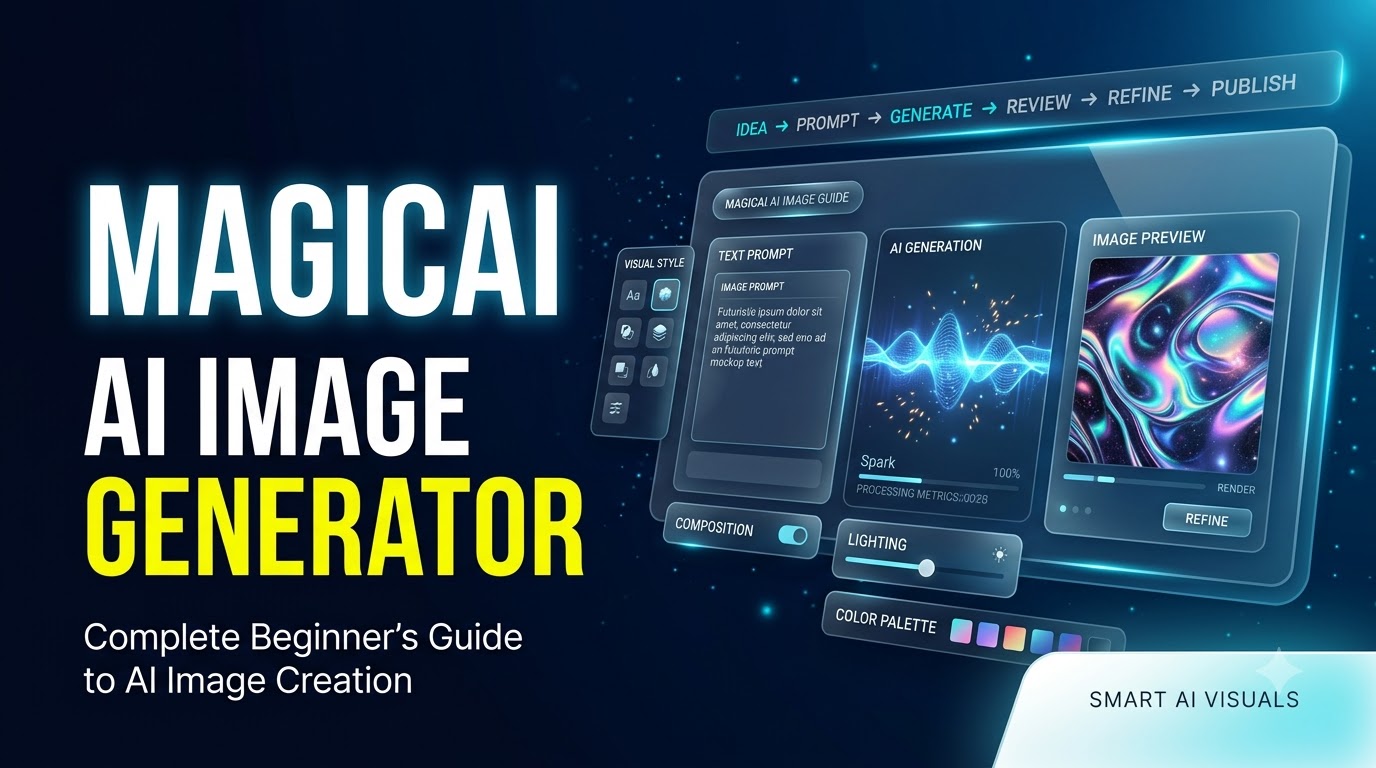
A beginner-friendly workflow can be understood in five basic stages:
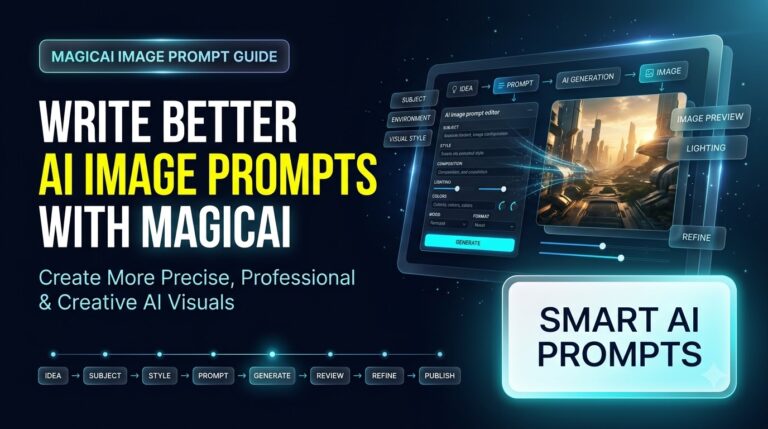
IDEA → PROMPT → GENERATE → REVIEW → REFINE
You start with an idea, convert it into a detailed prompt, generate an image, inspect the result, and improve the instructions when necessary.
MagicAI describes its general workflow as explaining what the content is about, providing basic information or keywords, and then viewing, editing, or exporting the result.
For image creation, this can be translated into a practical process:
- Decide what you want to create.
- Define the subject.
- Describe the environment.
- Select a visual style.
- Describe lighting and composition.
- Add important details.
- Generate the image.
- Review the result.
- Improve the prompt.
- Generate a refined version.
What Makes a Good AI Image Prompt?
A good image prompt gives the AI enough information to understand the desired visual direction.
A useful prompt can include:
| Prompt Element | What to Describe |
|---|---|
| Subject | What should appear in the image |
| Environment | Where the subject is located |
| Style | Photorealistic, cinematic, editorial, 3D, etc. |
| Composition | Close-up, wide shot, centered, symmetrical, etc. |
| Lighting | Soft, dramatic, studio, natural, neon, etc. |
| Colors | Main color palette |
| Materials | Glass, metal, fabric, wood, etc. |
| Mood | Premium, energetic, calm, futuristic, etc. |
| Background | Simple, detailed, gradient, studio, etc. |
| Output Purpose | Blog thumbnail, advertisement, product image, etc. |
The more clearly you define the important visual elements, the easier it becomes to communicate your intended result.
Step 1: Start With a Clear Image Idea
Before writing the prompt, decide exactly what you want the image to communicate.
For example:
Weak idea:
“Create a business image.”
This is too broad.
Better idea:
“Create a premium SaaS dashboard illustration showing an AI-powered content workflow for an SEO blog.”
The second idea gives the image generator a specific subject and purpose.
Step 2: Define the Main Subject
The subject is the most important visual element.
Examples include:
- Laptop
- Product package
- Smartphone
- Website dashboard
- Coffee product
- AI interface
- Office workspace
- Food product
- Fashion item
- Marketing campaign
- SEO dashboard
For example:
“A modern laptop displaying an SEO content dashboard.”
This gives the generator a clear visual starting point.
Step 3: Describe the Environment
After defining the subject, explain where it should appear.
Examples:
- Modern office
- Minimal studio
- Dark futuristic workspace
- E-commerce environment
- Premium product studio
- Creative agency workspace
- Technology dashboard environment
Example:
“A modern laptop displaying an SEO dashboard on a clean premium desk in a futuristic digital workspace.”
Step 4: Choose an Image Style
Style strongly influences the final appearance.
You can specify styles such as:
- Photorealistic
- Cinematic
- Editorial
- Minimalist
- Premium commercial
- 3D rendered
- Glassmorphism
- Futuristic SaaS
- Luxury product photography
- Modern advertising
- Digital illustration
For a website thumbnail, for example:
“Premium futuristic SaaS editorial style with glassmorphism UI elements.”
Step 5: Control the Composition
Composition determines how the elements are arranged.
Useful instructions include:
- Centered subject
- Wide horizontal composition
- Close-up
- Top-down view
- Symmetrical layout
- Left-aligned subject
- Right-side product placement
- Large negative space
- Balanced visual hierarchy
For a blog thumbnail, you might write:
“Wide 16:9 composition with the main interface positioned toward the right and clean negative space on the left for headline text.”
Step 6: Describe the Lighting
Lighting can completely change the mood of an image.
Examples:
- Soft studio lighting
- Cinematic lighting
- Natural daylight
- Dramatic side lighting
- Electric blue glow
- Warm ambient lighting
- Neon reflections
- High-key commercial lighting
Example:
“Use cinematic lighting with subtle electric-blue highlights and soft reflections.”
Step 7: Select a Color Direction
Color can help maintain brand consistency.
Examples:
- Dark navy and electric blue
- White and light cyan
- Black and gold
- Soft pastel colors
- Neutral gray
- Warm orange
- Green and white
Instead of saying:
“Use nice colors.”
Be specific:
“Use a dark navy background with electric-blue highlights, white interface elements, and subtle cyan reflections.”
Step 8: Explain the Purpose of the Image
The same subject can look completely different depending on its intended use.
Tell the generator whether the image is for:
- A blog thumbnail
- Website hero section
- Product advertisement
- Social media post
- E-commerce listing
- Editorial article
- YouTube thumbnail
- Marketing campaign
For example:
“Create this as a premium SEO blog thumbnail rather than a presentation slide.”
This helps establish the appropriate visual hierarchy.
How to Create Your First MagicAI Image
A beginner can use this simple process.
Step 1: Choose a Topic
Start with something familiar.
Example:
AI-powered SEO content creation
Step 2: Decide the Visual
Choose what should represent the topic.
Example:
A futuristic SEO dashboard.
Step 3: Add Style
Example:
Premium SaaS interface with glassmorphism.
Step 4: Add Composition
Example:
Wide 16:9 composition with a strong central interface.
Step 5: Add Lighting
Example:
Electric-blue cinematic lighting.
Step 6: Add Purpose
Example:
Professional blog featured image.
Step 7: Combine Everything
Beginner Prompt
Create a premium futuristic SEO blog featured image showing an AI-powered SEO dashboard with keyword research, content planning, search intent, and optimization cards. Use a dark navy background, electric-blue highlights, glassmorphism UI panels, cinematic lighting, subtle reflections, clean modern typography areas, and a professional SaaS editorial aesthetic. Use a wide 16:9 composition with strong visual hierarchy and enough negative space for a headline.
MagicAI AI Image Generator Prompt Formula
A reusable formula makes image creation easier.
SUBJECT + ENVIRONMENT + STYLE + COMPOSITION + LIGHTING + COLORS + DETAILS + PURPOSE
For example:
Create a [SUBJECT] in a [ENVIRONMENT], using a [STYLE] visual direction. Use [COMPOSITION], [LIGHTING], and [COLOR PALETTE]. Include [IMPORTANT DETAILS]. The image is intended for [PURPOSE].
This formula works well for beginners because it prevents important visual information from being forgotten.
Example 1: Blog Featured Image
Prompt:
Create a professional AI SEO content workspace showing an intelligent writing dashboard, keyword cards, content outlines, SEO metrics, and article sections. Use a dark navy and electric-blue SaaS environment with premium glassmorphism panels, cinematic lighting, subtle reflections, and a clean editorial composition. Wide 16:9 layout with strong hierarchy and negative space for a headline. Premium technology blog aesthetic.
Example 2: Product Advertisement
Prompt:
Create a premium commercial product image of a modern wireless headphone placed on a glossy studio surface. Use a dark luxury background, dramatic studio lighting, subtle blue reflections, realistic materials, detailed product textures, shallow depth of field, and a sophisticated advertising aesthetic. Center the product with balanced negative space for promotional text.
Example 3: Social Media Graphic
Prompt:
Create a modern social media graphic about AI productivity. Show a futuristic digital workspace with a laptop, productivity dashboard, floating task cards, and subtle AI visual elements. Use a clean blue and white color palette, modern glassmorphism, bright lighting, and a bold editorial composition optimized for social media.
Example 4: E-Commerce Visual
Prompt:
Create a premium e-commerce product image of a minimalist skincare bottle on a clean white studio surface. Use soft natural lighting, subtle shadows, realistic material details, elegant composition, premium commercial photography, and a minimal background suitable for an online product page.
Example 5: Futuristic Technology Image
Prompt:
Create a futuristic digital technology environment showing interconnected AI systems, data dashboards, cloud infrastructure, and glowing information panels. Use a dark navy background, electric-blue lighting, subtle cyan particles, realistic 3D depth, glassmorphism interfaces, and cinematic lighting. Keep the composition sophisticated, clean, and suitable for a professional technology website.
How to Improve an AI-Generated Image
Your first result may not always match your original idea.
Instead of completely starting over, identify what needs improvement.
If the Subject Is Wrong
Make the subject more specific.
Instead of:
“Create a laptop.”
Try:
“Create a modern silver business laptop with a thin bezel and a large screen displaying an SEO analytics dashboard.”
If the Background Is Too Busy
Add:
“Use a clean minimal background with limited visual elements.”
If the Image Looks Generic
Add more specific:
- Materials
- Lighting
- Environment
- Composition
- Brand style
- Intended use
If the Image Looks Too Artificial
Request:
“Use realistic materials, natural proportions, physically believable lighting, subtle shadows, and a polished commercial photography aesthetic.”
How to Create Consistent Images
Consistency is important when generating multiple visuals for the same website or campaign.
Keep the following elements consistent:
- Color palette
- Lighting
- Visual style
- Composition
- Background treatment
- Typography direction
- UI design language
- Image ratio
For example, a technology website might consistently use:
Dark navy + electric blue + glassmorphism + cinematic lighting + premium SaaS design
This creates a recognizable visual identity.
MagicAI AI Image Generator for Blog Content
Bloggers can use AI-generated visuals to create custom featured images for articles.
Useful blog-image categories include:
- SEO guides
- Tutorials
- Technology articles
- Marketing guides
- Business content
- AI tutorials
- Product guides
- Educational content
A useful blog prompt should communicate both the topic and the visual hierarchy.
Blog Prompt Template
Create a premium editorial featured image for an article about [TOPIC]. Show [MAIN VISUAL]. Use [STYLE], [COLOR PALETTE], [LIGHTING], and [COMPOSITION]. Include visual elements related to [KEY CONCEPTS]. Use a wide 16:9 composition with clean negative space for the article headline.
MagicAI for Social Media Images
Social media visuals often need stronger visual impact than ordinary blog graphics.
You can create concepts for:
- Instagram posts
- Facebook graphics
- LinkedIn visuals
- Promotional campaigns
- Educational posts
- Product announcements
- Quote graphics
- Campaign banners
The prompt should clearly specify the platform’s intended visual format when relevant.
MagicAI for Product Images
AI image generation can also support product-visual concepts.
Possible uses include:
- Product backgrounds
- Promotional concepts
- Lifestyle scenes
- Advertising concepts
- Product presentation ideas
- Campaign visuals
- Seasonal marketing graphics
However, if the image represents a real product, always check that important product characteristics remain accurate.
Do not assume an AI-generated image is an exact technical representation of a physical product.
How to Add Text to AI Images
Text inside generated images can sometimes be inconsistent or inaccurate.
For important marketing graphics, it is often better to treat the generated image as the visual foundation and add final typography during the design stage.
For example:
AI-generated visual:
- Background
- Product
- Lighting
- Decorative elements
Final design:
- Headline
- CTA
- Brand information
- Website URL
- Product specifications
This gives you more control over important text.
MagicAI AI Image Generator Workflow
A simple professional workflow is:
IDEA → SUBJECT → STYLE → COMPOSITION → PROMPT → GENERATE → REVIEW → REFINE → FINALIZE
IDEA
Define what you want to communicate.
SUBJECT
Identify the main visual.
STYLE
Choose the visual direction.
COMPOSITION
Decide how elements should be positioned.
PROMPT
Combine the instructions into a detailed description.
GENERATE
Create the initial image.
REVIEW
Check the subject, composition, details, and overall quality.
REFINE
Improve weak areas with more specific instructions.
FINALIZE
Prepare the image for its intended publishing channel.
Master Prompt for MagicAI AI Image Generation
Use this reusable prompt structure:
Create a high-quality [IMAGE TYPE] about [TOPIC]. The main subject is [SUBJECT]. Place it in [ENVIRONMENT]. Use a [STYLE] visual direction with [LIGHTING]. Use a [COLOR PALETTE] color scheme. Composition should be [COMPOSITION]. Include [IMPORTANT DETAILS]. Maintain realistic proportions, clean visual hierarchy, professional presentation, strong depth, and polished details. The image is intended for [USE CASE]. Keep the design visually balanced and avoid unnecessary elements.
Common Mistakes Beginners Should Avoid
1. Using Extremely Short Prompts
A prompt such as:
“Make an AI image.”
does not provide enough direction.
2. Adding Too Many Unrelated Ideas
Trying to combine ten different concepts can create a confusing composition.
3. Ignoring Composition
A visually attractive subject can still produce a poor image if everything is positioned randomly.
4. Not Defining the Purpose
A social media graphic and a product image require different visual approaches.
5. Expecting the First Generation to Be Perfect
AI image generation is often an iterative process.
6. Using Important Text Without Reviewing It
Always check generated typography before publishing.
7. Forgetting Brand Consistency
Images should fit the colors, visual identity, and overall design language of the website or campaign.
8. Skipping Human Review
AI-generated images should be checked for visual errors, incorrect details, awkward compositions, and unwanted elements.
Benefits of Using MagicAI for AI Image Creation
| Benefit | Explanation |
|---|---|
| Faster creation | Generate visual concepts quickly |
| Easy experimentation | Test multiple creative directions |
| Beginner-friendly | Start with text-based descriptions |
| Flexible applications | Useful across content and marketing |
| Creative assistance | Turn ideas into visual concepts |
| Workflow integration | Combine image creation with other AI content tasks |
| Faster ideation | Explore concepts before manual design |
| Scalable content creation | Develop visual concepts for multiple content pieces |
MagicAI also provides broader AI capabilities such as custom templates, multilingual generation, easy export, AI writing, AI code generation, AI chat, and other tools, making image generation part of a wider AI content ecosystem.
MagicAI AI Image Generator vs Traditional Design
| Factor | MagicAI AI Image Generation | Traditional Manual Design |
|---|---|---|
| Initial creation | Fast | Usually slower |
| Design skills | Lower starting barrier | Often requires experience |
| Experimentation | Easy | More time-consuming |
| Concept generation | Very fast | Requires manual ideation |
| Fine control | Depends on prompts and workflow | High |
| Brand consistency | Requires careful prompting/editing | Strong manual control |
| Final editing | May require additional tools | Built into design workflow |
| Best use | Ideation and fast visual creation | Precise professional production |
The best workflow is often not AI versus human design. It is AI-assisted creation followed by human review and refinement.
Beginner Checklist
Before generating an image, ask:
- What is the main subject?
- What should the image communicate?
- Where is the subject located?
- What visual style should I use?
- What colors should dominate?
- What type of lighting do I want?
- How should the composition be arranged?
- What details are essential?
- Where will the image be published?
- Does it need negative space for text?
- Does the image need to match existing branding?
- What should be avoided?
- Have I reviewed the generated result?
Frequently Asked Questions
What is the MagicAI AI Image Generator?
It is an AI-powered image-generation tool available within MagicAI that allows users to create images from ideas or user input. MagicAI lists both an AI Image Generator and Chat Image functionality.
Is MagicAI AI Image Generator suitable for beginners?
Yes. Beginners can start with a simple visual idea and gradually improve their prompts by adding details such as subject, environment, style, composition, lighting, and colors.
What should I include in a MagicAI image prompt?
Start with the subject and then describe the environment, visual style, composition, lighting, colors, important details, and intended use.
Can MagicAI create images for blog posts?
Yes. AI-generated visuals can be used as concepts or featured-image designs for blog content. Always review the final image before publishing.
Can I use MagicAI for product visuals?
It can be useful for product-visual concepts, promotional scenes, and marketing ideas. For accurate product representation, verify that the generated visual correctly reflects the actual product.
Why does my AI image look different from my prompt?
AI image generation interprets natural-language instructions. If the result is not close enough, make the prompt more specific and clearly prioritize the most important elements.
Should I use very long prompts?
Not necessarily. A useful prompt should be specific rather than unnecessarily complicated. Include the details that materially affect the desired image.
How can I get better results?
Use a structured workflow:
IDEA → SUBJECT → STYLE → COMPOSITION → PROMPT → GENERATE → REVIEW → REFINE
Final Verdict
The MagicAI AI Image Generator can be a useful starting point for beginners who want to turn ideas into visual content without beginning every project from a blank design canvas.
The key to better results is not simply generating more images. It is learning how to communicate visual requirements clearly.
Start with a specific subject, define the environment, choose a suitable style, control the composition, describe lighting and colors, and explain the purpose of the image. Then review the result and refine the prompt.
For beginners, the most practical approach is:
START SIMPLE → WRITE CLEAR PROMPTS → GENERATE → REVIEW → REFINE → FINALIZE
With practice, this workflow can make AI image generation more predictable, useful, and suitable for blogs, websites, marketing campaigns, social media, and creative projects.