
Introduction
Professional images are an important part of modern websites, blogs, social media campaigns, advertisements, product pages, and digital marketing.
Creating those visuals manually can require design software, creative skills, photography resources, and considerable time. AI image generation provides another approach: describe the desired visual and use AI to create a starting point that can then be reviewed and refined.
MagicAI includes an AI Image Generator for creating images and graphics. Its website describes the image workflow as Imagine, Generate, Publish and identifies Dall-E as the technology powering its image generation. MagicAI also provides Chat Image functionality for generating images from user input.
However, generating an image is only the first step. Creating a professional image requires a clear concept, strong prompt, appropriate composition, controlled lighting, consistent colors, and careful review.
This guide explains how to create professional images using MagicAI from the initial idea to the final visual.
What Makes an Image Look Professional?
A professional image is not simply a high-resolution image. It should communicate its purpose clearly and maintain a consistent visual hierarchy.
Important elements include:
- Clear subject
- Strong composition
- Appropriate visual style
- Controlled lighting
- Consistent colors
- Realistic or intentional details
- Suitable background
- Good visual balance
- Appropriate negative space
- Clear purpose
- Consistent branding
For example, a professional website hero image may require a completely different composition from an e-commerce product image.
The first question should therefore be:
What does this image need to accomplish?
Can MagicAI Create Professional Images?
Yes. MagicAI provides an AI Image Generator designed to create images from user ideas, while its broader platform also provides AI writing and other content-generation tools. The platform describes its image capability as a way to create high-quality images for a wide range of applications.
The quality of the final result depends heavily on the instructions you provide.
A vague prompt can produce a generic result.
A structured prompt can provide much more control over:
- Subject
- Environment
- Style
- Composition
- Lighting
- Color
- Mood
- Details
- Intended use
Step 1: Define the Purpose of Your Image
Before opening the image generator, determine why you need the image.
Possible purposes include:
- Blog featured image
- Website hero image
- Product advertisement
- Social media graphic
- E-commerce visual
- Marketing banner
- Editorial illustration
- YouTube thumbnail
- Educational graphic
- Brand campaign image
For example:
Purpose: SEO blog featured image
Topic: AI content creation
Desired visual: Futuristic AI writing workspace
This is much more useful than simply asking for “an AI image.”
Step 2: Choose the Main Subject
The subject should be the visual focus.
Examples:
- Smartphone
- Laptop
- Product package
- AI dashboard
- Food product
- SaaS interface
- Office workspace
- Fashion product
- Technology device
- Marketing campaign
Example
Instead of:
Create a technology image.
Use:
Create a premium laptop displaying an AI content-generation dashboard.
The second prompt gives MagicAI a much clearer visual direction.
Step 3: Describe the Environment
The environment determines where and how the subject appears.
You can specify:
- Modern office
- Product studio
- Futuristic workspace
- Minimal white studio
- Dark technology environment
- Luxury showroom
- Outdoor setting
- E-commerce studio
- Editorial environment
Example
Place the laptop in a premium futuristic SaaS workspace with floating glass interface panels.
This establishes a specific visual context.
Step 4: Select a Professional Visual Style
Style is one of the most important parts of an AI image prompt.
Depending on the project, you can request:
- Premium commercial photography
- Cinematic
- Photorealistic
- Editorial
- Minimalist
- Luxury
- Modern SaaS
- Futuristic
- 3D rendered
- Glassmorphism
- Clean product photography
- Professional advertising
Example
Use a premium modern SaaS editorial style with realistic 3D depth and sophisticated glassmorphism.
Step 5: Control the Composition
Composition determines how the elements are arranged inside the image.
Useful instructions include:
- Centered composition
- Symmetrical layout
- Wide horizontal composition
- Close-up
- Medium shot
- Top-down view
- Product centered
- Subject positioned on the right
- Negative space on the left
- Balanced visual hierarchy
For a blog thumbnail, you could use:
Use a wide 16:9 composition with the main visual positioned toward the right and clean negative space on the left for a headline.
This is especially useful when the image will later contain text.
Step 6: Use Professional Lighting
Lighting can dramatically change the appearance of an AI-generated image.
Depending on the project, try:
- Soft studio lighting
- Cinematic lighting
- Natural daylight
- Dramatic side lighting
- High-key commercial lighting
- Warm ambient lighting
- Cool blue lighting
- Subtle neon illumination
Example
Use controlled cinematic lighting with soft highlights, realistic shadows, and subtle electric-blue reflections.
Avoid simply saying:
Make it beautiful.
Instead, describe the actual lighting you want.
Step 7: Create a Controlled Color Palette
Professional visuals usually benefit from a deliberate color direction.
Examples:
Technology
Dark navy, electric blue, cyan, and white
Luxury
Black, gold, warm beige
Healthcare
White, soft blue, cyan
Food
Warm natural colors with fresh green accents
E-commerce
White, neutral gray, and one primary brand color
Example
Use a dark navy background with electric-blue highlights, white interface elements, and subtle cyan reflections.
Step 8: Add Realistic Details
Specific details can make an image more visually convincing.
For a product image, mention:
- Material
- Surface
- Texture
- Reflections
- Shadows
- Product finish
- Camera perspective
For a technology image, mention:
- Interface cards
- Data visualizations
- Glass panels
- Digital particles
- Reflections
- 3D depth
Example
Include realistic glass reflections, subtle shadows, polished metal surfaces, and controlled depth of field.
Step 9: Add Negative Space When Necessary
Negative space is the empty area around important visual elements.
It is particularly useful for:
- Blog thumbnails
- Website banners
- Advertising graphics
- Social media designs
- Landing page hero images
Example:
Keep the left third of the composition clean and uncluttered for headline placement.
This can make the final design much easier to use.
Step 10: Tell MagicAI Where the Image Will Be Used
The intended use helps determine the appropriate visual treatment.
For example:
Create this as a premium website hero image.
is different from:
Create this as an e-commerce product image on a white background.
Or:
Create this as a professional LinkedIn marketing graphic.
Always mention the intended destination when it materially affects the composition.
The Professional MagicAI Prompt Formula
A useful formula is:
PURPOSE → SUBJECT → ENVIRONMENT → STYLE → COMPOSITION → LIGHTING → COLORS → DETAILS → OUTPUT
For example:
Create a professional [IMAGE PURPOSE] showing [SUBJECT] in [ENVIRONMENT]. Use a [STYLE] visual direction with [COMPOSITION]. Apply [LIGHTING] and a [COLOR PALETTE]. Include [IMPORTANT DETAILS]. Keep the composition clean, balanced, realistic, and suitable for [INTENDED USE].
This structure is simple enough for beginners while providing enough information for more controlled results.
Professional Image Prompt Example
Here is a complete example:
Create a premium professional blog featured image about AI-powered content creation. Show a modern laptop displaying an advanced AI writing dashboard with content cards, keyword suggestions, and article sections. Place the laptop inside a sophisticated futuristic SaaS workspace with floating glassmorphism panels. Use a dark navy background, electric-blue highlights, subtle cyan reflections, realistic 3D depth, cinematic lighting, and polished commercial aesthetics. Use a wide 16:9 composition with the main interface toward the right and clean negative space on the left for a headline. Keep the image modern, sophisticated, uncluttered, and suitable for a professional technology blog.
How to Create Professional Blog Images Using MagicAI
Blog images should communicate the subject quickly.
A good blog featured image usually contains:
- One dominant visual concept
- Clear subject
- Strong color palette
- Appropriate topic-related elements
- Wide composition
- Space for headline if needed
- Professional visual hierarchy
Example Prompt
Create a professional editorial image for a blog article about SEO content optimization. Show a futuristic SEO dashboard containing keyword analysis, content scoring, search-intent cards, and optimization metrics. Use dark navy and electric-blue colors, glassmorphism panels, cinematic lighting, realistic 3D depth, and a clean premium SaaS aesthetic. Use a wide 16:9 composition with strong negative space for the article headline.
How to Create Professional Product Images
Product visuals require greater attention to the actual product.
A professional product prompt can describe:
- Product position
- Product material
- Surface
- Background
- Camera angle
- Lighting
- Shadows
- Reflections
- Commercial style
Example Prompt
Create a premium commercial product image of a modern wireless headphone placed on a glossy black studio surface. Use dramatic but controlled studio lighting, realistic materials, subtle reflections, soft shadows, shallow depth of field, and a sophisticated luxury advertising aesthetic. Keep the headphone as the dominant subject and maintain clean negative space around it.
If the image represents a real product, always verify important product characteristics before publishing.
How to Create Professional Website Hero Images
Website hero images need to work with the surrounding page layout.
A good hero image should have:
- Strong focal point
- Wide composition
- Clean visual hierarchy
- Appropriate negative space
- Brand-compatible colors
- Professional lighting
- Minimal unnecessary elements
Example Prompt
Create a premium website hero image for an AI SaaS platform. Show a futuristic AI dashboard with elegant glass interface cards, analytics panels, content-generation controls, and subtle data visualization. Use a dark navy background with electric-blue and cyan accents. Place the primary interface toward the right side and leave generous clean negative space on the left for website headline and CTA text. Use cinematic lighting, realistic 3D depth, polished glassmorphism, and a premium SaaS aesthetic.
How to Create Professional Social Media Images
Social media images generally need stronger visual impact and simpler compositions.
Focus on:
- One primary idea
- Strong contrast
- Clear subject
- Recognizable visual
- Limited clutter
- Platform-appropriate dimensions
- Consistent brand colors
Example Prompt
Create a premium social media graphic about AI productivity. Show a modern digital workspace with a laptop, AI productivity dashboard, floating task cards, and subtle automation elements. Use a clean electric-blue and white palette, glassmorphism UI, cinematic lighting, strong contrast, and a modern editorial composition. Keep the design visually simple and highly engaging.
How to Make AI Images Look More Realistic
If the result looks artificial, add specific visual instructions.
Try phrases such as:
- Realistic materials
- Natural proportions
- Physically believable lighting
- Detailed surface textures
- Soft natural shadows
- Subtle reflections
- Professional commercial photography
- Realistic depth of field
- High-detail product textures
- Natural environmental lighting
Example
Use realistic materials, natural proportions, physically believable shadows, subtle reflections, and polished commercial photography aesthetics.
How to Make AI Images Look More Premium
A premium visual usually benefits from controlled rather than excessive effects.
Use:
- Sophisticated lighting
- Limited color palette
- Strong composition
- High-quality materials
- Subtle reflections
- Depth
- Negative space
- Minimal visual clutter
Avoid adding every possible effect.
Instead of:
Add lots of neon, particles, glowing objects, reflections, lights, colors, and futuristic effects.
Use:
Use subtle electric-blue highlights, controlled reflections, soft digital particles, and refined cinematic lighting.
How to Create Consistent Images for a Brand
If you are producing multiple images, consistency is important.
Keep these elements stable:
- Color palette
- Lighting style
- Background treatment
- Composition
- Visual style
- UI design language
- Image ratio
- Overall mood
For example:
Brand Visual Direction
Dark navy + electric blue + cyan + glassmorphism + cinematic lighting + premium SaaS aesthetic
This direction can then be reused across:
- Blog images
- Website banners
- Social media
- Advertisements
- Landing pages
MagicAI also supports custom templates, which can help establish repeatable content-generation workflows across a broader content system.
How to Improve an Image After Generation
Your first generated image should be treated as a starting point.
Review it carefully.
Ask:
- Is the subject correct?
- Is the composition balanced?
- Are important details present?
- Is the lighting appropriate?
- Is the background too busy?
- Are the colors consistent?
- Is there enough negative space?
- Does the image match its purpose?
- Is any generated text incorrect?
- Are there distracting elements?
Then refine the prompt.
Example of Prompt Refinement
First Prompt
Create a professional AI technology image.
Improved Prompt
Create a premium SaaS editorial image showing an AI content-generation dashboard on a modern laptop. Use a dark navy workspace, electric-blue highlights, glassmorphism UI cards, cinematic lighting, realistic 3D depth, and a clean professional composition.
Further Improved Prompt
Create a premium 16:9 SaaS editorial image showing a modern laptop displaying an AI content-generation dashboard with keyword suggestions, article sections, and SEO optimization cards. Place the laptop in a dark navy futuristic workspace with floating glassmorphism panels. Use controlled electric-blue highlights, subtle cyan reflections, cinematic lighting, realistic 3D depth, and a sophisticated commercial aesthetic. Position the main interface on the right and leave clean negative space on the left for headline text. Avoid clutter and unnecessary decorative elements.
The third prompt gives much stronger visual direction.
Professional Images With Text
If the final graphic requires important text, carefully review the generated typography.
Important information such as:
- Product names
- Prices
- URLs
- Technical specifications
- CTAs
- Brand messages
should be checked before publication.
For high-stakes marketing graphics, a practical approach is to generate the visual background with AI and add the final typography separately using a design tool.
This gives you more control over spelling, alignment, font selection, and brand consistency.
MagicAI Professional Image Workflow
Use this workflow for most projects:
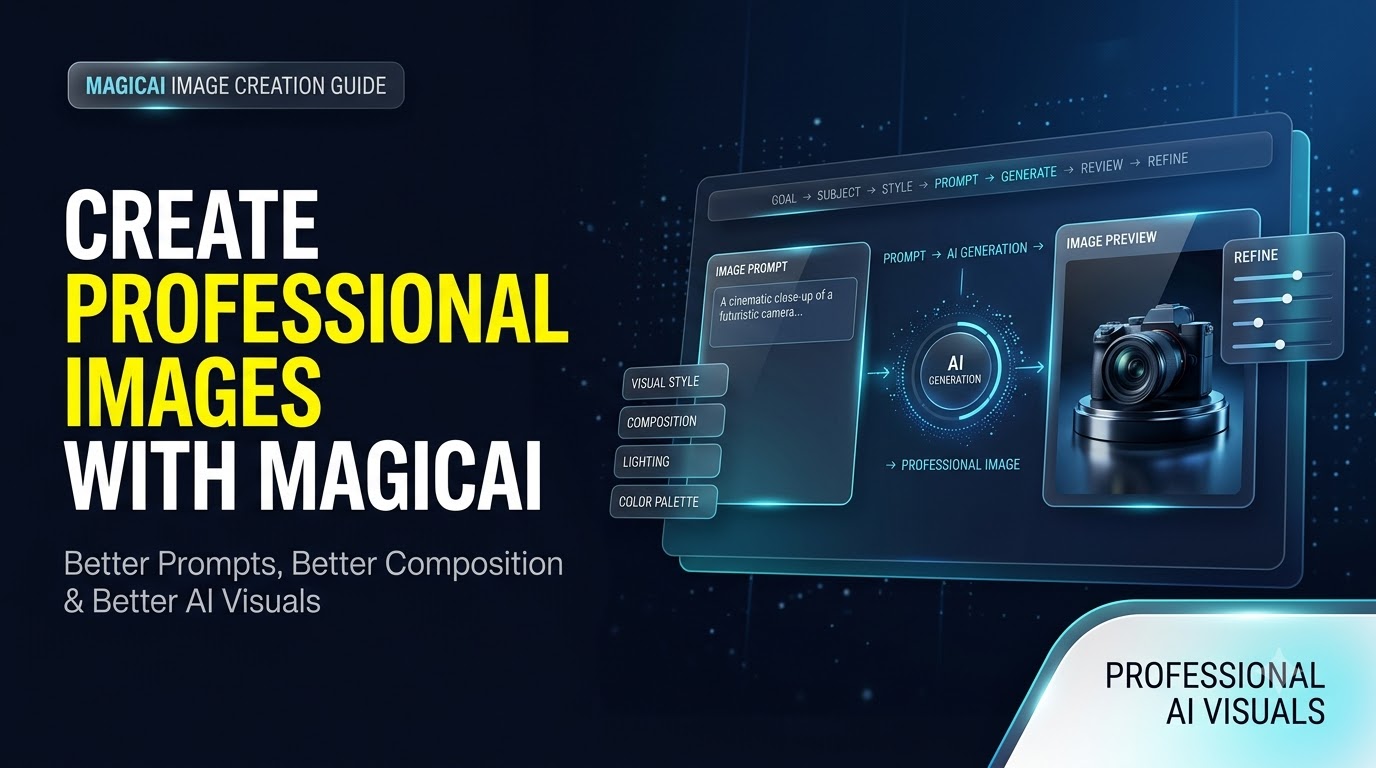
GOAL → SUBJECT → ENVIRONMENT → STYLE → COMPOSITION → LIGHTING → COLORS → PROMPT → GENERATE → REVIEW → REFINE → FINALIZE
GOAL
Determine what the image needs to accomplish.
SUBJECT
Choose the primary visual.
ENVIRONMENT
Define where the subject appears.
STYLE
Choose the appropriate aesthetic.
COMPOSITION
Control positioning and negative space.
LIGHTING
Define the mood and visual depth.
COLORS
Create a controlled palette.
PROMPT
Combine the instructions.
GENERATE
Create the first version.
REVIEW
Identify weaknesses.
REFINE
Improve the prompt.
FINALIZE
Prepare the image for publishing.
Master Prompt for Professional MagicAI Images
Use this reusable template:
Create a professional [IMAGE TYPE] for [PURPOSE]. The main subject is [SUBJECT]. Place it in [ENVIRONMENT]. Use a [VISUAL STYLE] aesthetic. Create a [COMPOSITION] layout with [NEGATIVE SPACE REQUIREMENT]. Use [LIGHTING STYLE] and a controlled [COLOR PALETTE]. Include [IMPORTANT DETAILS]. Maintain realistic proportions, polished materials, natural depth, clean visual hierarchy, and professional presentation. Avoid unnecessary elements and visual clutter. Make the final image suitable for [PLATFORM OR USE CASE].
10 Ready-to-Use Professional MagicAI Image Prompts
1. Professional Technology Image
Create a premium technology editorial image showing a futuristic AI dashboard with data analytics, content generation, and automation controls. Use dark navy, electric blue, and cyan colors, glassmorphism panels, cinematic lighting, realistic 3D depth, and a clean 16:9 composition.
2. Business Website Hero
Create a sophisticated business website hero image showing a modern digital workspace with analytics dashboards and AI-powered business tools. Use a premium blue and white palette, realistic materials, subtle reflections, cinematic lighting, and generous negative space for website copy.
3. Product Advertisement
Create a premium commercial advertisement featuring a modern wireless headphone on a luxury studio surface. Use dramatic studio lighting, realistic materials, subtle reflections, controlled shadows, and a sophisticated advertising aesthetic.
4. SaaS Landing Page
Create a futuristic SaaS landing-page visual showing a polished AI dashboard with floating glass interface cards, analytics, workflow controls, and content-generation tools. Use dark navy and electric blue with refined glassmorphism and cinematic lighting.
5. E-Commerce Product
Create a clean premium e-commerce product image showing a minimalist skincare bottle on a white studio surface. Use soft professional lighting, realistic shadows, detailed material texture, subtle reflections, and a luxury commercial photography style.
6. SEO Blog Image
Create a professional SEO editorial image showing keyword research, content planning, search intent, and optimization dashboards. Use a premium SaaS visual style, dark navy background, electric-blue accents, glassmorphism UI, and wide 16:9 composition.
7. Marketing Campaign
Create a premium marketing campaign visual showing a digital advertising dashboard with campaign analytics, audience segments, creative cards, and conversion metrics. Use sophisticated blue lighting, glass panels, realistic depth, and strong visual hierarchy.
8. Social Media Graphic
Create a modern professional social media graphic about AI productivity. Show a clean digital workspace with a laptop, AI dashboard, productivity cards, and automation elements. Use a bright blue and white palette with polished glassmorphism and strong composition.
9. Editorial Business Image
Create a high-end editorial image representing modern business strategy. Show a professional digital planning workspace with strategy documents, analytics dashboards, charts, and AI tools. Use a sophisticated navy and cyan palette, cinematic lighting, realistic depth, and a clean magazine aesthetic.
10. Futuristic AI Concept
Create a premium futuristic AI concept image showing interconnected digital systems, intelligent dashboards, data streams, and automation workflows. Use dark navy, electric blue, and cyan, with subtle particles, glassmorphism panels, cinematic lighting, and realistic 3D depth.
Common Mistakes to Avoid
1. Using Vague Prompts
“Create a professional image” gives too little information.
2. Adding Too Many Ideas
Too many unrelated subjects can create a cluttered composition.
3. Ignoring the Final Platform
A website hero image, Instagram graphic, and product image require different layouts.
4. Overusing Visual Effects
Too much glow, neon, particles, or reflections can make an image look artificial.
5. Forgetting Negative Space
Text-heavy designs need space for headlines and CTAs.
6. Ignoring Brand Consistency
Different images should still feel like they belong to the same visual system.
7. Publishing Without Review
Always inspect generated images before using them commercially or publicly.
8. Expecting AI to Replace Every Design Step
AI can accelerate visual creation, but final editing and quality control can still be valuable.
Benefits of Creating Professional Images With MagicAI
| Benefit | How It Helps |
|---|---|
| Faster ideation | Quickly turn concepts into visual directions |
| Faster production | Generate initial visuals without starting from scratch |
| Creative exploration | Test multiple styles and compositions |
| Accessibility | Lower the barrier for users without advanced design skills |
| Content support | Create visuals for blogs, websites, products, and campaigns |
| Consistency | Reuse structured prompts and visual directions |
| Iteration | Improve results by refining instructions |
| Workflow integration | Combine image generation with other AI content tasks |
MagicAI also provides features such as custom templates and easy export alongside its AI generation tools, which can support broader content workflows.
MagicAI vs Traditional Image Creation
| Factor | MagicAI | Traditional Design |
|---|---|---|
| Initial concept | Very fast | Usually manual |
| Idea exploration | Easy | More time-consuming |
| Design expertise | Lower starting barrier | Often requires training |
| Creative variations | Fast | Manual |
| Pixel-level control | Limited compared with manual design | High |
| Brand precision | Requires careful prompting and editing | Strong manual control |
| Final polishing | May require additional editing | Directly controlled |
| Best approach | AI-assisted creation | Precise manual production |
The strongest workflow is often a combination of both approaches: AI for ideation and generation, human judgment for refinement and final quality control.
Professional Image Creation Checklist
Before publishing an image, check:
- Is the purpose clear?
- Is the subject clearly defined?
- Is the visual style appropriate?
- Is the composition balanced?
- Is the lighting professional?
- Are the colors controlled?
- Is there enough negative space?
- Does the image fit the brand?
- Are important visual details correct?
- Is any generated text accurate?
- Does the image match the publishing platform?
- Has the final image been reviewed?
Frequently Asked Questions
Can beginners create professional images with MagicAI?
Yes. Beginners can start with simple prompts and improve results by adding details about the subject, environment, style, composition, lighting, colors, and intended use.
What is the most important part of a professional AI image?
There is no single element. A professional result usually comes from combining a clear concept with strong composition, appropriate style, controlled lighting, and careful review.
How detailed should a MagicAI image prompt be?
It should be specific enough to communicate the important visual requirements without becoming unnecessarily complicated.
Can MagicAI create images for websites?
Yes. MagicAI’s AI Image Generator is designed for creating images and graphics for a range of applications.
Can I use MagicAI for product images?
It can be useful for product concepts, promotional visuals, and marketing scenes. However, important characteristics of a real product should always be verified before publishing an AI-generated representation.
How can I make AI images look more realistic?
Specify realistic materials, natural proportions, believable lighting, detailed textures, subtle shadows, and professional photography or commercial visual styles.
Why does my generated image look cluttered?
The prompt may contain too many competing instructions. Simplify the concept, identify one main subject, reduce unnecessary elements, and define a clear composition.
Should I add text directly to the AI image?
For important marketing text, consider adding final typography separately so that spelling, alignment, fonts, and branding remain under your control.
Final Verdict
Creating professional images using MagicAI is less about writing the longest possible prompt and more about providing the right visual instructions.
Start with a clear goal. Define the subject, environment, style, composition, lighting, and color palette. Then generate the image, inspect the result, identify weaknesses, and refine the prompt.
A reliable workflow is:
GOAL → SUBJECT → STYLE → COMPOSITION → PROMPT → GENERATE → REVIEW → REFINE → FINALIZE
Once you develop this workflow, MagicAI can become a practical part of a broader visual-content process for websites, blogs, social media, product marketing, advertisements, and other digital projects.