
Introduction
Social media is highly visual. Whether you are publishing on Instagram, Facebook, LinkedIn, Pinterest, or another platform, the quality and relevance of your visual content can strongly influence how users notice and interact with a post.
Creating every social media graphic manually can take significant time. You may need to select images, create layouts, adjust colors, add design elements, and prepare different versions for different platforms.
MagicAI can help simplify the visual-creation process. Its official platform includes an AI Image Generator for creating images and graphics, while its custom templates also include social-media-focused tools such as Instagram captions, Instagram hashtags, Facebook Ads, and social media post generators. MagicAI describes its image workflow as Imagine, Generate, Publish and identifies Dall-E as the technology powering image generation.
The important part is learning how to give the image generator clear visual instructions.
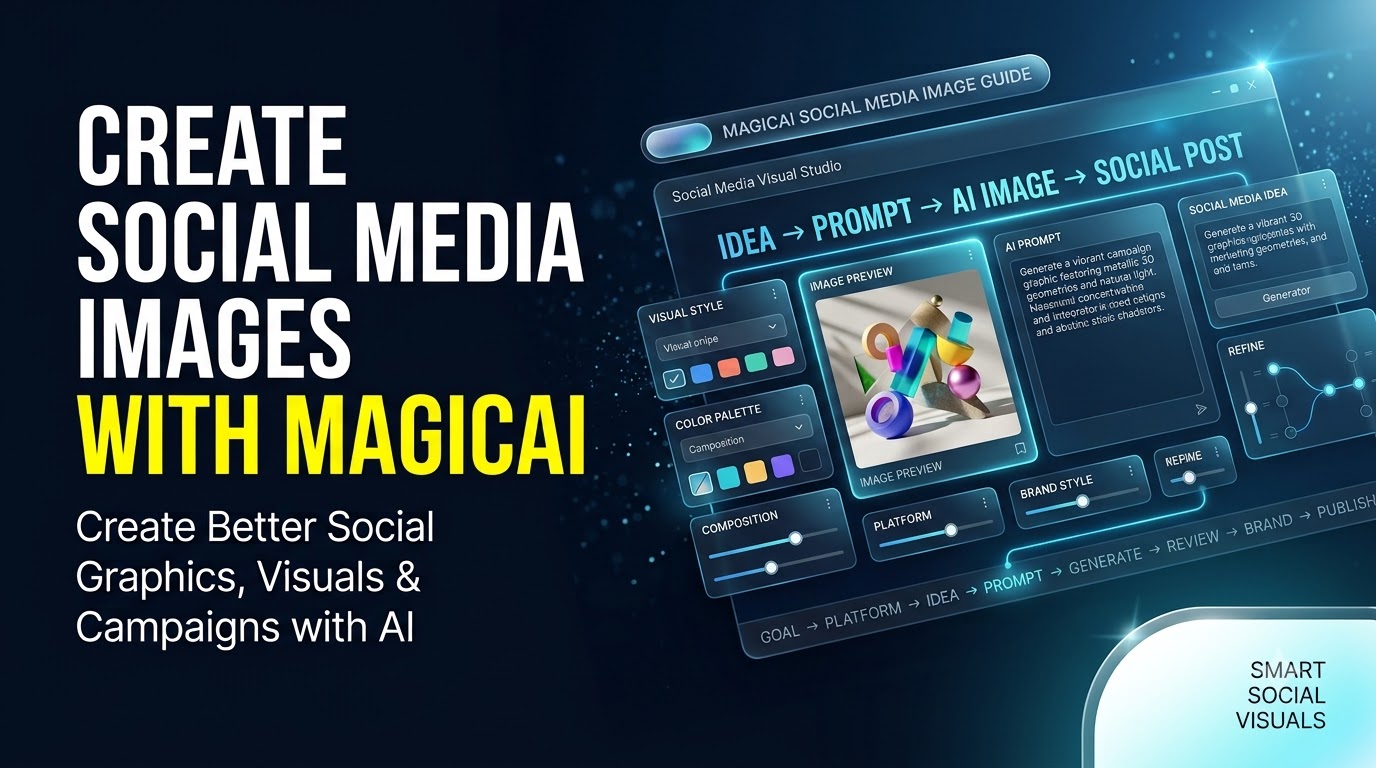
This guide explains how to create professional social media images using MagicAI, from choosing a concept and writing a prompt to selecting a visual style, maintaining brand consistency, and refining the final image.
What Are Social Media Images?
Social media images are visual assets created specifically to accompany or communicate content on social platforms.
They can include:
- Promotional graphics
- Product images
- Educational visuals
- Quote graphics
- Announcement posts
- Event promotions
- Brand awareness graphics
- Infographics
- Lifestyle images
- Social media advertisements
- Blog promotion images
- Seasonal campaign visuals
The goal is usually to communicate an idea quickly while fitting the visual style and requirements of the platform.
Can MagicAI Create Social Media Images?
MagicAI provides an AI Image Generator that can create images from user input. The platform also includes social-media-related custom templates and describes its broader workflow as allowing users to provide an idea or basic information and then generate, edit, and export content.
This makes MagicAI useful for developing social media visual concepts such as:
- Product promotions
- Educational posts
- Marketing graphics
- Campaign visuals
- Brand announcements
- Social media advertisements
- Content-series graphics
However, a professional result depends on the quality of the visual instructions.
Why Use MagicAI for Social Media Images?
1. Faster Visual Creation
AI can help you move from a concept to an initial visual much faster than creating every design element manually.
2. More Creative Ideas
You can experiment with different:
- Backgrounds
- Styles
- Colors
- Lighting
- Compositions
- Visual concepts
3. Multiple Content Variations
A single campaign can have several visual directions without requiring an entirely new creative process each time.
4. Useful for Different Content Types
MagicAI can support visual concepts for:
- Product promotions
- Educational posts
- Business content
- Marketing campaigns
- Social announcements
- Blog promotions
5. Works With Broader Content Creation
MagicAI combines image generation with writing and social-media-related tools, allowing users to develop both visual and text components of a campaign.
Step 1: Define Your Social Media Goal
Before generating an image, decide what the visual needs to accomplish.
Your goal might be:
- Promote a product
- Educate followers
- Announce something
- Increase engagement
- Promote a blog article
- Build brand awareness
- Advertise an offer
- Introduce a service
- Share an event
- Support a campaign
For example:
Goal: Promote an AI writing tool.
Visual concept: A futuristic AI writing dashboard with content cards and productivity elements.
This gives the image a clear purpose.
Step 2: Identify Your Target Audience
Your visual style should match the people you want to reach.
For example:
Business Audience
Use:
- Professional layouts
- Sophisticated colors
- Clean interfaces
- Minimal visual elements
Young Consumer Audience
Use:
- Strong contrast
- Modern compositions
- Energetic colors
- Creative visual concepts
Luxury Audience
Use:
- Minimal design
- Premium materials
- Controlled lighting
- Elegant color palettes
Educational Audience
Use:
- Clear visual hierarchy
- Simple graphics
- Easy-to-understand concepts
- Clean backgrounds
Step 3: Choose the Social Media Platform
Different platforms can require different visual approaches.
Before generating the image, decide where it will be published.
Common destinations include:
- X
- Social media advertisements
- Website-to-social promotions
The exact image dimensions and platform requirements can change, so verify the current requirements for the platform before publishing.
Instead of creating one generic image for every platform, consider creating platform-specific versions.
Step 4: Choose the Main Visual Concept
A social media image should generally communicate one primary idea.
For example:
Topic: SEO
Main visual: SEO dashboard
Supporting elements: Keywords, search intent, analytics
Avoid trying to represent an entire article visually.
A simpler composition often communicates the message more effectively.
Step 5: Define the Main Subject
Tell MagicAI exactly what should dominate the image.
Examples:
- Product
- Smartphone
- Laptop
- AI dashboard
- Person-free workspace
- Packaging
- Website interface
- Digital marketing dashboard
- Abstract business concept
Example
Weak:
Create an SEO image.
Better:
Create a futuristic SEO dashboard showing keyword research, search intent, content optimization, and ranking analytics.
Step 6: Select a Visual Style
The visual style should match your brand and campaign.
Possible styles include:
- Premium editorial
- Modern SaaS
- Minimalist
- Photorealistic
- Commercial photography
- Cinematic
- Luxury
- Futuristic
- 3D rendered
- Glassmorphism
- Clean corporate
Example
Use a premium modern SaaS editorial style with glassmorphism interface cards and cinematic lighting.
Step 7: Choose Your Color Palette
Consistent colors can make social media content easier to recognize as part of the same brand.
Examples:
Technology
Dark navy, electric blue, cyan, white
Luxury
Black, gold, cream
Natural Products
Green, beige, white
Professional Business
Navy, white, gray
Creative Brand
Bright colors with controlled contrast
Instead of saying:
Use attractive colors.
Be specific:
Use a dark navy background with electric-blue highlights, white interface elements, and subtle cyan accents.
Step 8: Control the Composition
Composition is particularly important for social media.
Useful instructions include:
- Centered subject
- Large focal point
- Symmetrical layout
- Wide composition
- Square composition
- Vertical composition
- Subject on the right
- Text space on the left
- Strong negative space
- Minimal background
For example:
Place the primary product toward the center with clean negative space around it for promotional text.
Step 9: Add Lighting
Lighting helps establish the mood.
You can request:
- Soft studio lighting
- Cinematic lighting
- Natural daylight
- Dramatic side lighting
- Electric-blue glow
- Warm ambient lighting
- High-key commercial lighting
- Soft diffused lighting
Example:
Use controlled cinematic lighting with subtle blue highlights and realistic shadows.
Step 10: Include Brand Elements Carefully
Brand consistency can be maintained through:
- Colors
- Visual style
- Background treatment
- Lighting
- Composition
- Design language
If exact logos or brand typography are important, it is often better to add them during the final design stage rather than relying entirely on AI-generated typography.
How to Write a Social Media Image Prompt
A useful formula is:
GOAL → SUBJECT → AUDIENCE → STYLE → COMPOSITION → COLORS → LIGHTING → DETAILS → PLATFORM
For example:
Create a professional social media image designed to promote [GOAL]. Show [SUBJECT] using a [STYLE] visual direction. Use [COMPOSITION], [COLOR PALETTE], and [LIGHTING]. Include [IMPORTANT DETAILS]. Keep the visual clean, engaging, and suitable for [PLATFORM].
This gives MagicAI enough information to understand the intended visual.
Professional Social Media Image Prompt
Create a premium social media graphic promoting AI-powered content creation. Show a modern AI content-generation dashboard with article sections, keyword cards, productivity controls, and visual analytics. Use a dark navy background with electric-blue and cyan accents, premium glassmorphism panels, cinematic lighting, realistic 3D depth, and a polished SaaS editorial aesthetic. Use a clean composition with the dashboard as the main focal point and enough negative space for a headline. Keep the design modern, professional, visually engaging, and suitable for a business social media campaign.
How to Create Instagram Images Using MagicAI
Instagram is highly visual, so the image should have a strong focal point and a clean composition.
Possible concepts include:
- Product promotions
- Educational carousels
- Quote graphics
- Brand announcements
- Lifestyle visuals
- Campaign images
- Blog promotions
Example Prompt
Create a premium Instagram visual about AI productivity. Show a futuristic digital workspace with an AI productivity dashboard, floating task cards, content-generation controls, and subtle automation elements. Use a modern blue and white palette, polished glassmorphism, soft cinematic lighting, strong visual hierarchy, and a clean composition with one dominant focal point.
How to Create Facebook Images Using MagicAI
Facebook content can include promotional graphics, business announcements, advertisements, and educational posts.
Example Prompt
Create a professional Facebook marketing graphic promoting an AI content-generation platform. Show a modern laptop displaying a polished AI writing dashboard with content cards and productivity metrics. Use dark navy, electric blue, and white, with cinematic lighting and premium glassmorphism. Keep the layout clean, professional, and suitable for a business marketing campaign.
MagicAI also lists Facebook Ads and Facebook Headlines among its custom templates, which can complement the visual content workflow.
How to Create LinkedIn Images Using MagicAI
LinkedIn visuals generally benefit from a professional and informative appearance.
Good concepts include:
- Business insights
- Industry trends
- Educational content
- Company announcements
- Professional tips
- Product updates
- Data-driven graphics
Example Prompt
Create a sophisticated LinkedIn visual about AI-powered business productivity. Show a premium digital workspace with an AI productivity dashboard, business analytics, workflow cards, and content-generation tools. Use navy, white, and subtle cyan accents, realistic 3D depth, controlled lighting, and a clean corporate editorial style.
How to Create Promotional Social Media Images
Promotional visuals should clearly communicate the product or offer without becoming visually overloaded.
Focus on:
- Product visibility
- Strong contrast
- Brand colors
- Clear hierarchy
- Space for CTA
- Relevant visual elements
Example Prompt
Create a premium promotional social media graphic featuring a modern SaaS product dashboard as the dominant visual. Use a dark navy background, electric-blue highlights, premium glassmorphism, cinematic lighting, realistic 3D depth, and clean negative space for a promotional headline and CTA. Keep the composition sophisticated and uncluttered.
How to Create Educational Social Media Images
Educational graphics should prioritize clarity.
Possible subjects include:
- SEO
- Marketing
- AI
- Business
- Productivity
- Technology
- Industry information
Example Prompt
Create a professional educational social media graphic explaining SEO keyword research. Show a clean keyword-analysis dashboard with keyword clusters, search intent, related terms, and content opportunities. Use a white and blue professional palette, modern glassmorphism cards, clear hierarchy, subtle shadows, and a clean editorial layout.
How to Create Product Social Media Images
Product posts require the product to remain the dominant visual.
Example Prompt
Create a premium social media advertisement featuring a modern wireless headphone as the primary subject. Place it on a sophisticated dark studio surface with controlled cinematic lighting, realistic material textures, subtle reflections, and electric-blue rim lighting. Leave clean negative space for promotional copy and maintain a polished commercial photography aesthetic.
How to Create Quote Graphics
Quote graphics are usually simple and typography-focused.
A useful workflow is:
AI VISUAL → FINAL TYPOGRAPHY → BRAND ELEMENTS
Instead of relying entirely on AI-generated text, create a clean background and add the final quote in your preferred design software.
Example Prompt
Create a sophisticated minimalist background for a professional business quote graphic. Use a dark navy gradient, subtle glassmorphism elements, soft electric-blue illumination, refined depth, and generous negative space in the center for a quote. Keep the visual elegant, uncluttered, and suitable for a professional social media brand.
How to Create Social Media Campaign Images
For a campaign, create a consistent visual system instead of generating unrelated images.
Define:
- Campaign colors
- Background style
- Lighting
- Image composition
- Typography direction
- Visual motifs
- Product positioning
Example Campaign Direction
Dark navy background + electric-blue highlights + glassmorphism + cinematic lighting + premium SaaS aesthetic
Then reuse this direction across:
- Announcement image
- Product image
- Educational image
- Promotional image
- Final CTA image
This creates a stronger campaign identity.
How to Create Consistent Social Media Images
Consistency matters when your audience sees several posts from the same brand.
Keep these elements consistent:
- Color palette
- Typography treatment
- Lighting
- Background
- Image style
- Composition
- Visual effects
- Brand tone
For example:
Visual System
Dark navy + electric blue + cyan + glassmorphism + cinematic lighting + clean editorial layouts
This can become the foundation for an entire social media series.
How to Create Social Media Image Series
Instead of generating one image at a time without a plan, create a visual series.
For example, a five-post campaign:
Post 1 — Problem
Show the problem your audience faces.
Post 2 — Education
Show the key information or insight.
Post 3 — Solution
Introduce your product or solution.
Post 4 — Benefits
Visualize the key benefits.
Post 5 — CTA
Create a clean promotional image with space for the final call to action.
Keep the visual style consistent across all five images.
How to Add Text to Social Media Images
Text is often important in social media graphics.
You may need:
- Headline
- Supporting statement
- CTA
- Product name
- Offer
- Date
- Website
- Promotional information
However, AI-generated typography may not always be reliable.
A practical workflow is:
AI GENERATION → IMAGE REVIEW → FINAL DESIGN → TYPOGRAPHY → BRANDING → EXPORT
Generate the visual foundation with MagicAI and add important final text separately when exact spelling and layout matter.
How to Improve a Social Media Image
After generating the first version, review it.
Ask:
- Is the message clear?
- Is there one main focal point?
- Is the composition balanced?
- Is the background distracting?
- Are the colors on-brand?
- Is the product clearly visible?
- Is there enough space for text?
- Does it fit the intended platform?
- Are there unwanted objects?
- Does the image look professional?
Then modify the prompt.
Example of Prompt Refinement
Basic Prompt
Create a social media image about AI.
Improved Prompt
Create a professional social media graphic about AI productivity showing a modern AI dashboard with productivity cards and automation controls.
Advanced Prompt
Create a premium social media graphic about AI productivity showing a modern AI dashboard with productivity cards, workflow controls, content-generation panels, and subtle analytics. Use a dark navy background, electric-blue highlights, premium glassmorphism, realistic 3D depth, cinematic lighting, and a clean editorial composition. Keep one dominant focal point and leave generous negative space for headline text.
The advanced version gives the image generator much stronger visual direction.
MagicAI Social Media Image Prompt Template
Use this reusable template:
Create a professional social media image for [PLATFORM] about [TOPIC/GOAL]. The main visual is [SUBJECT]. Use a [STYLE] aesthetic with [COLOR PALETTE], [LIGHTING], and [COMPOSITION]. Include [IMPORTANT VISUAL ELEMENTS]. Keep the design clean, visually engaging, brand-consistent, and easy to understand. Leave [NEGATIVE SPACE REQUIREMENT] for final text or CTA. Avoid unnecessary visual clutter.
10 Ready-to-Use Social Media Image Prompts
1. AI Productivity
Create a premium social media image about AI productivity. Show a futuristic productivity dashboard with task cards, AI automation controls, workflow elements, and analytics. Use dark navy, electric blue, and cyan with glassmorphism, cinematic lighting, realistic 3D depth, and a clean editorial composition.
2. SEO Education
Create a professional social media graphic explaining SEO optimization. Show keyword cards, search intent, content optimization, internal links, and SEO metrics in a modern dashboard. Use a clean blue and white palette, subtle glassmorphism, professional lighting, and clear visual hierarchy.
3. Product Promotion
Create a premium social media advertisement featuring [PRODUCT] as the dominant subject. Use professional commercial lighting, realistic materials, controlled reflections, a sophisticated background, brand-compatible colors, and generous negative space for promotional copy.
4. Business Announcement
Create a sophisticated business announcement graphic showing a modern digital workspace with a professional analytics dashboard. Use navy, white, and cyan accents, clean glassmorphism panels, subtle lighting, and a premium corporate editorial aesthetic.
5. Marketing Campaign
Create a premium social media campaign image for a modern digital marketing brand. Show campaign analytics, creative cards, audience insights, and conversion metrics in a futuristic dashboard. Use dark navy and electric blue with controlled neon highlights and cinematic depth.
6. Educational AI Post
Create a professional educational social media visual explaining how AI can improve content creation. Show an AI writing dashboard, content outline, keyword cards, and publishing workflow. Use a clean modern SaaS aesthetic with blue and white colors and subtle glassmorphism.
7. Seasonal Promotion
Create a premium seasonal promotional social media image featuring [PRODUCT] in an elegant seasonal environment. Use subtle decorative elements, professional lighting, realistic materials, balanced composition, and a sophisticated brand-compatible color palette.
8. Blog Promotion
Create a premium social media graphic promoting an SEO blog article. Show a modern laptop displaying an SEO content dashboard with keyword research, content outline, search intent, and optimization cards. Use dark navy, electric blue, glassmorphism, cinematic lighting, and clean negative space for the article title.
9. Customer Education
Create a professional social media educational graphic showing a clear step-by-step digital workflow. Use modern interface cards, numbered stages, subtle blue gradients, clean typography areas, realistic 3D depth, and a polished SaaS editorial style.
10. Call-to-Action Graphic
Create a premium social media CTA graphic for a modern AI platform. Show a sophisticated AI interface with subtle glowing elements and clean glassmorphism panels. Use dark navy and electric blue, cinematic lighting, strong visual hierarchy, and generous negative space for a final CTA.
Common Mistakes to Avoid
1. Using Vague Prompts
“Create a social media image” does not tell MagicAI enough about your desired visual.
2. Trying to Show Too Much
One image should usually have one primary visual message.
3. Ignoring the Platform
Different platforms and placements can require different compositions and dimensions.
4. Using Too Many Colors
A controlled palette usually looks more professional than a random collection of bright colors.
5. Overusing Effects
Too much glow, neon, particles, and reflections can make the design look artificial.
6. Forgetting Brand Consistency
A social feed should feel visually connected.
7. Adding Too Much Text
AI-generated images can become difficult to read when overloaded with copy.
8. Publishing Without Review
Always inspect the final visual before publishing.
Benefits of Creating Social Media Images With MagicAI
| Benefit | Explanation |
|---|---|
| Faster creation | Quickly turn ideas into visual concepts |
| Creative experimentation | Test multiple visual directions |
| Campaign flexibility | Develop different images for a campaign |
| Visual consistency | Reuse structured prompts and design directions |
| Marketing support | Create promotional and educational concepts |
| Faster iteration | Refine visuals by changing prompts |
| Content scalability | Develop visuals for multiple posts |
| Broader workflow | Combine image generation with text and social-media tools |
MagicAI’s current platform combines AI image generation with custom templates for social media content, including Instagram captions, Instagram hashtags, Facebook Ads, social media posts, and other marketing-related generators.
MagicAI vs Traditional Social Media Design
| Factor | MagicAI | Traditional Design |
|---|---|---|
| Initial visual concept | Fast | Manual |
| Creative variations | Easy to explore | More time-consuming |
| Design expertise | Lower starting barrier | Often requires experience |
| Background experimentation | Fast | Manual |
| Brand precision | Requires review/editing | High manual control |
| Typography control | May require final editing | High |
| Pixel-level control | Limited | High |
| Best use | Ideation and rapid visual creation | Precise final production |
A practical workflow is often:
AI GENERATION → HUMAN EDITING → BRANDING → FINAL REVIEW
Professional Social Media Image Workflow
Use this workflow for repeatable results:
GOAL → AUDIENCE → PLATFORM → TOPIC → SUBJECT → STYLE → COLORS → COMPOSITION → PROMPT → GENERATE → REVIEW → REFINE → BRAND → PUBLISH
GOAL
Determine what the image needs to achieve.
AUDIENCE
Understand who will see it.
PLATFORM
Select the intended social network and placement.
TOPIC
Define the subject of the post.
SUBJECT
Choose the primary visual.
STYLE
Select the visual direction.
COLORS
Use a controlled brand palette.
COMPOSITION
Define positioning and negative space.
PROMPT
Combine the visual instructions.
GENERATE
Create the initial image.
REVIEW
Check quality and relevance.
REFINE
Improve weak areas.
BRAND
Add final typography and brand elements.
PUBLISH
Export and publish the approved version.
Social Media Image Checklist
Before publishing, check:
- Is the goal clear?
- Is the main visual obvious?
- Does the image fit the target audience?
- Is the platform appropriate?
- Is the composition balanced?
- Are the colors consistent with the brand?
- Is the image visually clean?
- Is there enough space for text?
- Is the text accurate?
- Are there unwanted elements?
- Is the product or subject recognizable?
- Does it match the rest of the campaign?
- Has the image been reviewed?
- Is the final export suitable for the intended platform?
Frequently Asked Questions
Can MagicAI create social media images?
Yes. MagicAI provides an AI Image Generator for creating images and graphics, and its platform also includes several social-media-focused content templates.
Can I use MagicAI to create Instagram images?
Yes. You can use MagicAI to develop visual concepts for Instagram and then prepare the final image according to the current Instagram format and placement requirements.
Can MagicAI create Facebook promotional images?
Yes. MagicAI provides image generation and also lists Facebook Ads among its custom templates, making it suitable for developing Facebook campaign concepts.
How should I write a MagicAI social media image prompt?
Describe the goal, audience, platform, subject, visual style, colors, lighting, composition, and important visual elements.
Should I add text directly to an AI-generated image?
For important marketing text, it is usually better to add the final typography during the editing stage so that spelling, alignment, fonts, and brand consistency remain under your control.
How can I make social media images look professional?
Use a clear concept, one dominant focal point, a controlled color palette, suitable lighting, strong composition, consistent branding, and minimal clutter.
Can I create multiple images for one social media campaign?
Yes. Create a consistent visual system and reuse the same color palette, lighting, composition style, and design language across the campaign.
Can MagicAI create product social media images?
Yes. You can use AI image generation to develop product-promotion concepts, lifestyle scenes, and advertising visuals. Always verify important product characteristics before publishing.
Should every social media post use the same design?
Not necessarily. The content can vary, but maintaining a consistent visual language helps the overall brand feel recognizable.
Final Verdict
Learning how to create social media images using MagicAI starts with a clear understanding of the purpose behind each visual.
Instead of simply asking AI to “create a social media image,” define the goal, audience, platform, topic, subject, style, colors, lighting, composition, and text space.
A reliable workflow is:
GOAL → AUDIENCE → PLATFORM → SUBJECT → STYLE → COMPOSITION → PROMPT → GENERATE → REVIEW → REFINE → BRAND → PUBLISH
MagicAI can help accelerate visual ideation and image creation, while human editing remains important for typography, branding, accuracy, and final quality.
When used consistently, this approach can help creators and businesses develop more professional, recognizable, and engaging social media visuals across their content campaigns.